Complete Guide to Setting Up IBO Player for Streaming
Introduction
Are you struggling to get your streaming service working properly on your devices? Understanding ibo player activation can be the key to unlocking a seamless viewing experience across multiple platforms. Many users find themselves confused when trying to set up their streaming services, especially when it comes to entering the ibo player activation code iptv correctly. This comprehensive guide will walk you through everything you need to know about activating IBO Player, from device requirements to step-by-step instructions, ensuring you can enjoy your favorite content without frustrating technical issues.
Devices & Requirements
Before diving into the activation process, it’s important to understand what devices and requirements are necessary for a successful setup:
1. Compatible Devices:
– Smart TVs (Samsung, LG, Sony, etc.)
– Amazon Firestick/Fire TV
– Android TV Box
– Windows PC or Mac
– Android phones and tablets
– iOS devices (iPhone/iPad)
2. Network Requirements:
– Stable internet connection (minimum 10 Mbps for HD, 25+ Mbps for 4K)
– Wired connection recommended for best performance
– Properly configured router with updated firmware
3. Software Requirements:
– Latest version of IBO Player installed
– Updated device operating system
– Sufficient storage space for the application
– Valid subscription from a service provider
4. Optional Equipment:
– Ethernet adapter (for devices without Ethernet port)
– VPN service (for accessing geo-restricted content)
– External storage (for recording features if supported)
– Bluetooth keyboard (for easier text input)
Setup Time & Preparation
Setting up IBO Player typically takes between 15-30 minutes, depending on your familiarity with streaming applications and your device’s performance. Here’s what to expect during the setup process:
1. Application Download and Installation: 5-10 minutes
– Downloading the application from your device’s app store
– Installing the application on your device
2. Account Creation: 3-5 minutes
– Creating an account if required
– Verifying your email if necessary
3. Activation Process: 5-10 minutes
– Entering activation information
– Waiting for server verification
4. Initial Configuration: 5-10 minutes
– Setting up preferences
– Configuring display and playback settings
Preparation Checklist:
– Have your subscription details ready
– Ensure your device is fully charged or plugged in
– Connect to a stable internet connection
– Close unnecessary applications running in the background
– Have your activation code handy (usually provided by your service provider)
– Make note of your device’s model and operating system version
Step-by-Step Instructions
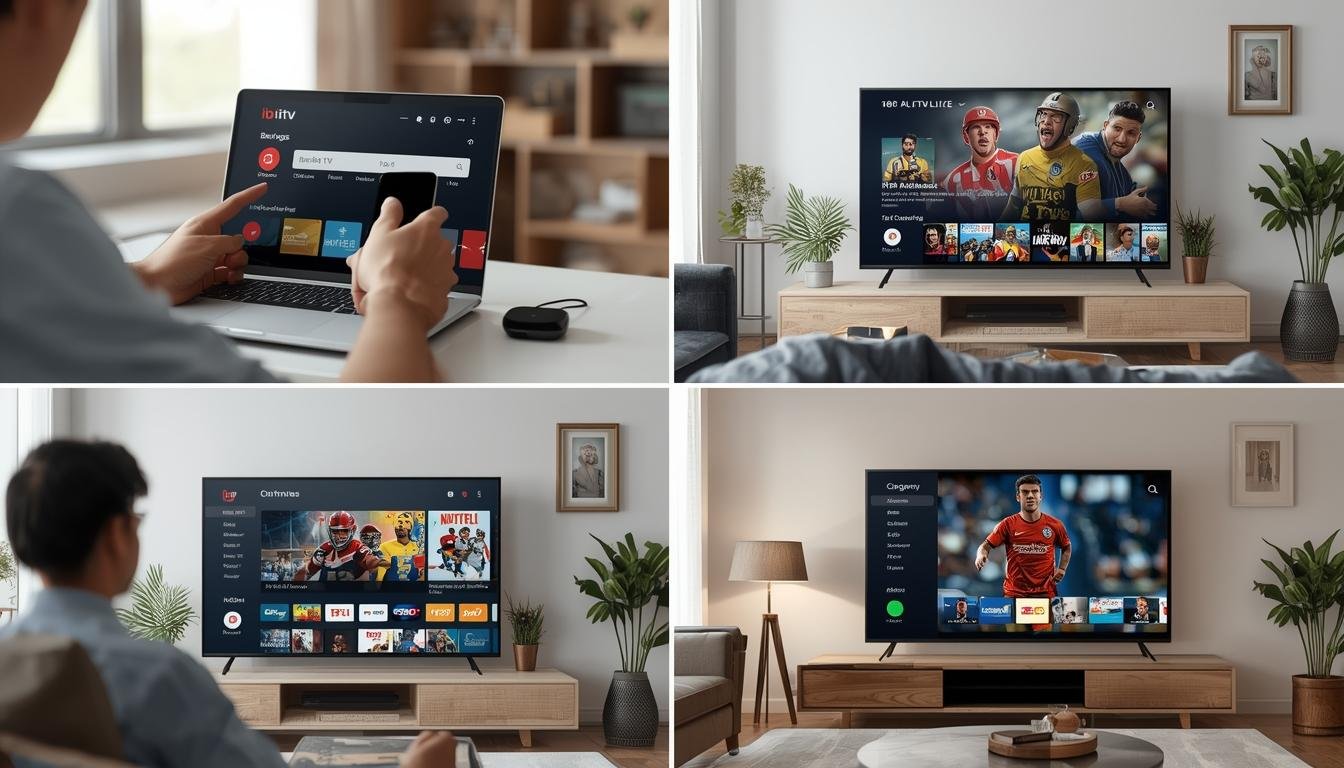
Follow these detailed instructions to successfully complete your ibo player activation and start enjoying your content:
1. Download and Install IBO Player
– For Android/Fire TV: Search for IBO Player on Google Play Store or Amazon App Store
– For iOS: Download from Apple App Store
– For Windows/Mac: Visit the official website to download the desktop version
– Follow on-screen prompts to complete installation
2. Launch the Application
– Open IBO Player from your device’s app menu
– Accept any permissions requested by the application
– Wait for the initial setup to complete
3. Navigate to Activation Section
– Select the menu icon (usually three horizontal lines)
– Look for “Settings” or “Account” option
– Find the “Activation” or “Enter Code” section
4. Enter Your ibo player activation code iptv
– Input the activation code provided by your service provider
– Double-check the code for accuracy (codes are typically case-sensitive)
– Select “Activate” or “Submit” to proceed
5. Verify Activation
– Wait for the system to verify your code
– You should see a confirmation message upon successful activation
– If you encounter errors, retry or contact your provider
6. Configure Settings (Optional)
– Set video quality preferences (Auto, HD, SD)
– Configure buffer size if available
– Set up parental controls if needed
– Customize the interface according to your preferences
7. Add Content Sources
– Navigate to the “Add Source” section
– Enter the URL or details provided by your content provider
– Name the source for easy identification
– Save the source and wait for content to load
8. Test Playback
– Select a channel or video to test playback
– Verify audio and video quality
– Test different content types to ensure everything works properly
Benefits & Advantages
Successfully activating IBO Player offers numerous advantages for your streaming experience:
1. Enhanced User Interface
– Intuitive navigation designed for TV remote or touchscreen
– Customizable layouts to suit your viewing preferences
– Easy-to-use channel organization and favorites system
2. Superior Playback Features
– Support for multiple video formats (MP4, MKV, AVI, etc.)
– Adaptive streaming quality based on your connection
– Advanced buffering system to minimize interruptions
– Timeshift functionality on supported channels
3. Content Management
– EPG (Electronic Program Guide) integration
– Content categorization by genre, country, or language
– Search functionality to quickly find desired content
– Recording capabilities on compatible devices
4. Cross-Platform Compatibility
– Synchronize viewing across multiple devices
– Consistent user experience across different platforms
– Resume playback where you left off on another device
5. Performance Optimization
– Low resource consumption compared to other players
– Stability during extended viewing sessions
– Reduced buffering through optimized data handling
– Quick loading times even on older devices
Tips, Alternative Methods, or Optimization Advice
To get the most out of your IBO Player, consider these optimization tips and alternatives:
1. Performance Optimization
– Clear cache regularly (Settings > Storage > Clear Cache)
– Close background apps before streaming
– Use wired connections when possible
– Set video quality based on your internet speed
2. Alternative Activation Methods
– QR code scanning (if supported)
– MAC address registration through provider’s website
– Email activation link (check your email after registration)
– Phone activation through customer support
3. Network Optimization
– Position your streaming device close to your router
– Use 5GHz Wi-Fi instead of 2.4GHz when available
– Consider a Wi-Fi extender for better coverage
– Set up Quality of Service (QoS) on your router to prioritize streaming
4. Alternative Players
– TiviMate as a feature-rich alternative
– Perfect Player for simplicity
– VLC for versatile format support
– IPTV Smarters Pro for user-friendly interface
5. Storage Management
– Move the app to external storage if your device supports it
– Regularly clear unnecessary recordings
– Set auto-deletion for viewed content
– Manage download quality for offline viewing
Common Mistakes to Avoid
Be aware of these common mistakes when setting up and using IBO Player:
1. Activation Code Errors
– Entering codes with typos or incorrect spacing
– Using expired or already-used activation codes
– Confusing uppercase and lowercase characters
– Solution: Double-check code and request a new one if necessary
2. Network Configuration Issues
– Using VPN with incompatible settings
– Streaming on congested networks
– Using public Wi-Fi for streaming
– Solution: Test different network configurations and avoid peak usage times
3. Outdated Software
– Running older versions of the application
– Using outdated device firmware
– Not updating necessary dependencies
– Solution: Enable auto-updates or regularly check for updates manually
4. Device Compatibility Problems
– Trying to use IBO Player on unsupported devices
– Insufficient device specifications
– Incompatible Android/iOS versions
– Solution: Verify system requirements before installation
5. Configuration Errors
– Incorrect server URLs
– Wrong port settings
– Invalid login credentials
– Solution: Carefully follow provider instructions and save configuration details
Maintenance & Ongoing Care
To ensure optimal performance of IBO Player over time, follow these maintenance practices:
1. Regular Updates
– Check for app updates weekly
– Update your device’s operating system when available
– Review provider notifications for service changes
2. Cache Management
– Clear cache monthly (more frequently for heavy users)
– Restart the application after extended use
– Perform a full device restart weekly
3. Subscription Management
– Keep track of renewal dates
– Update payment information as needed
– Check for promotional upgrades periodically
4. Content Optimization
– Organize favorites for quicker access
– Remove unused channels or sources
– Update EPG data regularly
– Create custom groups based on viewing habits
5. Performance Monitoring
– Track buffering instances and their timing
– Note any recurring issues for troubleshooting
– Monitor data usage if you have limited bandwidth
– Test different settings to find optimal configuration
Conclusion
Mastering ibo player activation is the gateway to enjoying a seamless streaming experience across all your devices. By following the comprehensive steps outlined in this guide, you can avoid common pitfalls and make the most of your streaming subscription. Remember that proper setup and ongoing maintenance are key to preventing issues with your ibo player activation code iptv and ensuring uninterrupted entertainment. Whether you’re a new user or looking to optimize your existing setup, these guidelines provide everything you need for a trouble-free streaming experience. Consider bookmarking this guide for future reference as you explore additional features and capabilities of IBO Player.
FAQs
How long is my IBO Player activation code valid?
Typically, activation codes are valid for 24-48 hours after being issued. If you don’t use your code within this timeframe, you may need to request a new one from your service provider. Some premium providers offer extended validity periods of up to 7 days for their activation codes.
Can I use my IBO Player subscription on multiple devices simultaneously?
This depends on your service provider’s policies. Most basic packages allow 1-2 concurrent connections, while premium subscriptions might support 4-5 devices streaming simultaneously. Check your subscription details or contact your provider to confirm your specific limits.
Why do I keep experiencing buffering despite having fast internet?
Buffering can occur due to several factors beyond internet speed, including server load, network congestion, device processing power, or incorrect player settings. Try adjusting buffer size in settings, using a wired connection instead of Wi-Fi, or streaming during off-peak hours to reduce buffering issues.
Is it legal to use IBO Player for streaming content?
IBO Player is simply a media player application that can access content from various sources. The legality depends on the content sources you connect to and your local laws regarding content access. Always ensure you’re using properly licensed content through legitimate service providers.
How can I troubleshoot if my activation code isn’t working?
First, verify you’re entering the exact code including any special characters. Ensure you’re using the latest version of IBO Player. Check that your subscription is active and not expired. Try clearing the application cache and restarting your device. If issues persist, contact your service provider’s customer support with your account details.
Leave a Reply