Blog

  • How to Install DEIPTV: 5 Simple Steps for Streaming

    How to Install DEIPTV: 5 Simple Steps for Streaming

    How to Set Up and Optimize Your IPTV Streaming Experience

    Are you looking to enhance your entertainment options with flexible, on-demand content? Setting up a deiptv system offers a modern alternative to traditional cable services. The growing popularity of deiptv streaming service options provides viewers with more control over their viewing experience while potentially reducing monthly entertainment costs. This comprehensive guide will walk you through everything you need to know about setting up, optimizing, and maintaining your IPTV system for the best possible streaming experience.

    Devices & Requirements

    Before diving into the setup process, it’s important to understand what equipment and specifications you’ll need for a smooth IPTV experience:

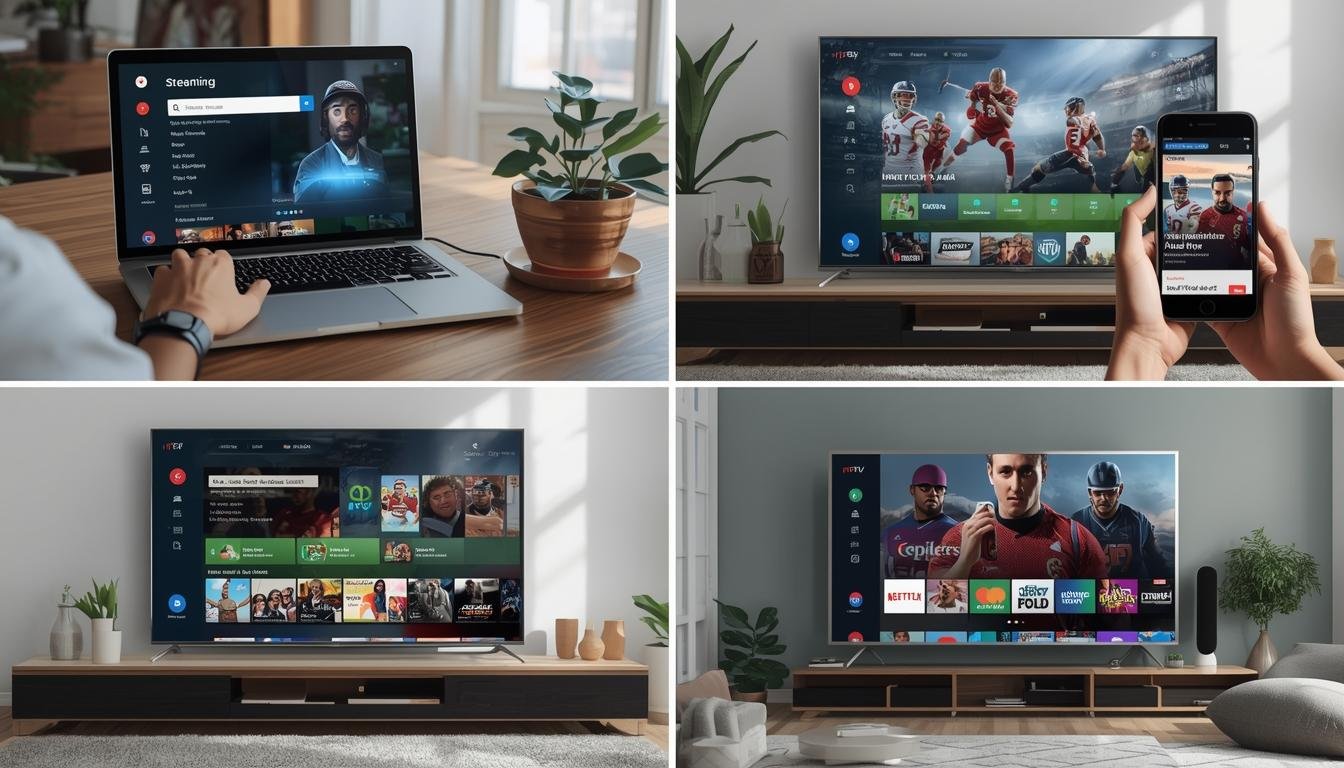
    Compatible Devices

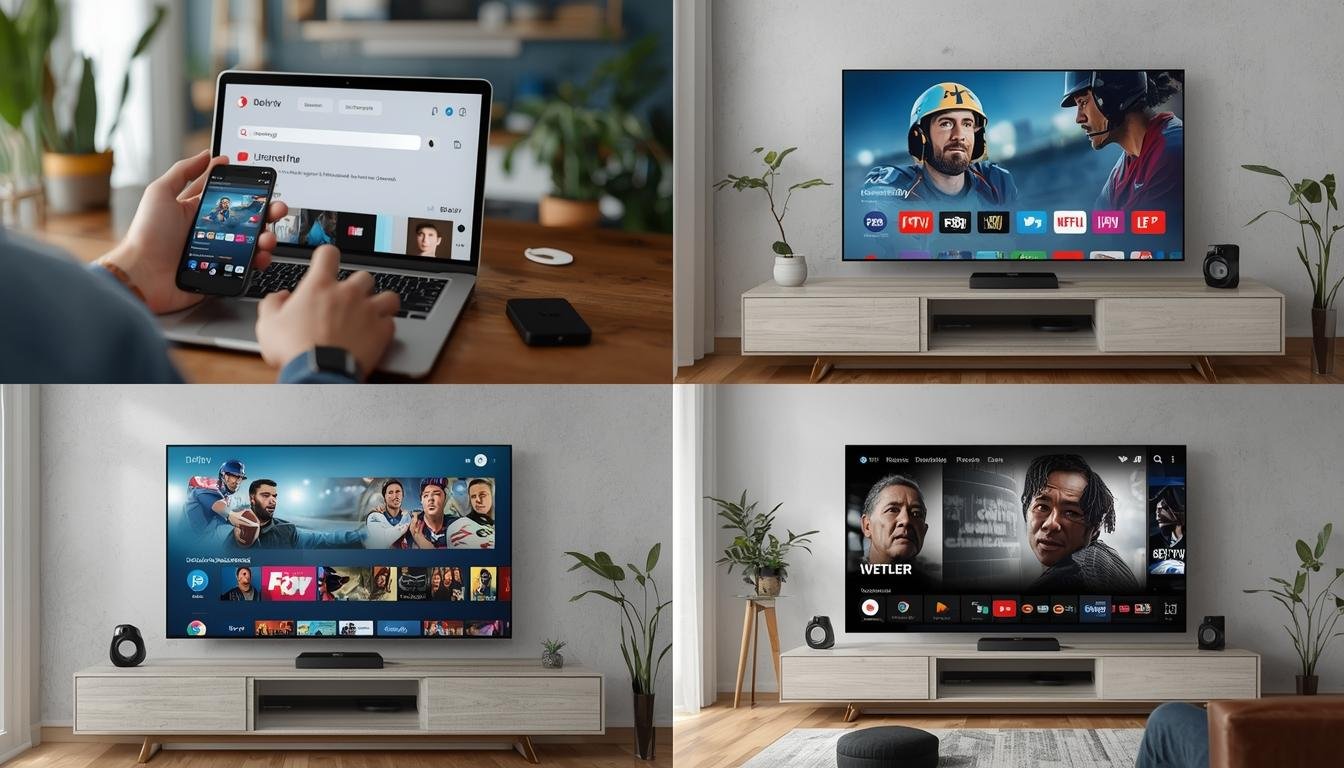
    Smart TVs: Most modern smart TVs (Samsung, LG, Sony, etc.) have built-in capabilities to run IPTV apps
    Amazon Firestick/Fire TV: Popular and affordable option for converting any TV into a streaming device
    Android TV Box: Dedicated boxes like NVIDIA Shield, Xiaomi Mi Box, or generic Android TV boxes
    Mobile Devices: Smartphones and tablets (both iOS and Android)
    Computers: Windows PCs, Macs, and laptops with appropriate software

    Internet Requirements

    Minimum Speed: At least 10 Mbps for standard definition content
    Recommended Speed: 25+ Mbps for HD content, 50+ Mbps for 4K streaming
    Connection Type: Wired ethernet connection preferred for stability, though strong Wi-Fi works too

    Software Components

    IPTV Player App: VLC Media Player, Perfect Player, IPTV Smarters, TiviMate, or GSE Smart IPTV
    M3U Playlist: The subscription list containing your channels and content
    EPG (Electronic Program Guide): For channel schedules and program information

    Optional Tools

    VPN Service: For enhanced privacy and potential access to geo-restricted content
    External Storage: For recording capabilities on some systems
    Ethernet Adapter: For devices that support USB-to-Ethernet connections

    Setup Time & Preparation
    How to Install DEIPTV: 5 Simple Steps for Streaming

    Before beginning the installation process, it’s helpful to know what time investment to expect:

    Total Setup Time: 15-45 minutes depending on your technical experience and chosen device
    Learning Curve: Moderate for beginners, minimal for tech-savvy users
    Preparation Steps:
    – Research and select a reputable IPTV provider
    – Ensure your internet connection is stable and meets minimum requirements
    – Download necessary apps to your preferred device
    – Have your subscription details (M3U URL, username/password) ready
    – Set aside uninterrupted time to complete the setup

    The initial configuration is typically a one-time process, with only occasional updates or changes needed afterward. Taking time to properly set up your system will lead to fewer issues and a better viewing experience in the long run.

    Step-by-Step Instructions
    How to Install DEIPTV: 5 Simple Steps for Streaming

    Follow these detailed instructions to set up your deiptv system on your preferred device:

    1. Choose and Subscribe to an IPTV Provider

    – Research providers based on content selection, reliability, and customer reviews
    – Select a subscription plan (typically monthly, quarterly, or annual)
    – Complete payment and receive your account credentials
    – Save your M3U playlist URL and any login information provided

    2. Set Up Your Device

    For Firestick/Fire TV:
    1. Go to the Amazon App Store
    2. Search for and download an IPTV player app (TiviMate, IPTV Smarters, etc.)
    3. Open the installed app and follow the initial setup prompts
    4. Select “Add Playlist” or similar option
    5. Enter your M3U URL or upload your playlist file
    6. Add EPG URL if provided by your deiptv streaming service
    7. Wait for channels to load and organize

    For Android TV Box:
    1. Open Google Play Store
    2. Search for and install your preferred IPTV player app
    3. Launch the app and navigate to settings
    4. Select option to add new playlist
    5. Enter the M3U URL or upload your playlist file
    6. Configure EPG if available
    7. Customize interface settings to your preference

    For Smart TVs:
    1. Access your TV’s app store
    2. Search for compatible IPTV players
    3. Install the app and open it
    4. Navigate to add new playlist/source
    5. Enter your subscription details
    6. Set up EPG and customize user interface
    7. Organize channels into favorites if desired

    3. Optimize Your Settings

    After basic setup, fine-tune these settings for the best experience:
    Video Quality: Adjust based on your internet speed
    Buffer Size: Increase if you experience playback interruptions
    EPG Timeframe: Set how many days of program guide to download
    UI Customization: Adjust channel view, font size, and layout
    Favorites: Mark your most-watched channels for easy access

    4. Test Your Connection

    – Play different channels to ensure proper functionality
    – Check stream quality at different times of day
    – Test VOD (Video on Demand) content if included in your package
    – Verify EPG accuracy and completeness

    Benefits & Advantages

    IPTV systems offer numerous advantages over traditional television services:

    Content Variety

    – Access to thousands of channels from around the world
    – International content in multiple languages
    – Specialized channels not available on standard cable packages
    – VOD libraries with movies and TV series

    Flexibility and Convenience

    – Watch on multiple devices with a single subscription
    – No need for satellite dishes or complex cable installations
    – Take your content anywhere with mobile device compatibility
    – Time-shifting capabilities to watch programs when convenient

    Cost Effectiveness

    – Generally more affordable than traditional cable packages
    – No equipment rental fees or long-term contracts
    – Pay only for the content types you want
    – Multiple device support without additional fees

    Technical Advantages

    – Potentially higher video quality (up to 4K where supported)
    – Digital integration with smart home systems
    – Custom channel organization and favorites
    – Recording capabilities on compatible systems

    Tips, Alternative Methods, or Optimization Advice

    Connection Optimization

    – Use wired ethernet connections whenever possible
    – Place your Wi-Fi router centrally if using wireless
    – Consider a mesh Wi-Fi system for large homes
    – Schedule heavy downloads during non-viewing hours
    – Limit the number of simultaneous streaming devices

    Alternative Player Apps

    Perfect Player: Great for customization and stability
    TiviMate: Premium interface with advanced features
    VLC Media Player: Free, open-source option with broad compatibility
    GSE Smart IPTV: Good for iOS users
    IPTV Smarters Pro: User-friendly interface for beginners

    Performance Tips

    – Regularly clear cache in your IPTV application
    – Restart your streaming device weekly
    – Keep your player app updated to the latest version
    – Use external player options for problematic streams
    – Consider a dedicated streaming device rather than using a smart TV’s built-in apps

    Common Mistakes to Avoid
    How to Install DEIPTV: 5 Simple Steps for Streaming

    Be aware of these frequent issues that can impact your IPTV experience:

    Technical Mistakes

    Using Outdated Hardware: Older devices may struggle with high-definition streams
    Inadequate Internet Speed: Attempting to stream 4K content on low-bandwidth connections
    Improper Settings Configuration: Not adjusting buffer settings for your connection type
    Overloading Your Network: Running too many simultaneous streams
    Ignoring VPN Requirements: Some providers perform better with or require VPN usage

    Subscription Errors

    Choosing Unreliable Providers: Selecting services based solely on price without researching stability
    Not Backing Up Configuration: Losing all settings when changing devices
    Sharing Credentials Inappropriately: Risking account termination through unauthorized sharing
    Missing Renewal Dates: Experiencing service interruption due to expired subscriptions

    Security Concerns

    Using Untrustworthy Applications: Installing apps from unknown sources without verification
    Neglecting Device Updates: Missing security patches that protect your system
    Clicking Suspicious Links: Following unknown links in IPTV apps or related communications
    Storing Payment Information Insecurely: Not using secure payment methods for subscriptions

    Maintenance & Ongoing Care

    To keep your IPTV system running optimally, establish these maintenance routines:

    Regular Updates

    – Check for app updates weekly
    – Update your streaming device firmware when available
    – Renew subscriptions before expiration
    – Refresh playlist and EPG data regularly

    Performance Maintenance

    – Clear cache files monthly (or when experiencing issues)
    – Monitor device storage space and free up when necessary
    – Restart streaming devices weekly to clear memory
    – Test internet speed periodically to ensure it meets requirements

    Troubleshooting Routine

    – Develop a standard checklist for common issues:
    1. Check internet connection
    2. Refresh playlist
    3. Clear cache
    4. Restart application
    5. Restart device
    6. Contact provider support if issues persist

    Long-term Considerations

    – Evaluate subscription value annually
    – Upgrade hardware every 2-3 years for best performance
    – Keep backup configurations for quick setup on new devices
    – Monitor for new player apps with improved features

    Conclusion

    Setting up a deiptv system may require some initial effort, but the rewards of a personalized, flexible viewing experience make it worthwhile for many users. By following the steps outlined in this guide and implementing the recommended optimization techniques, you’ll be well on your way to enjoying a stable and feature-rich streaming setup.

    Remember that the quality of your experience depends on several factors including your internet connection, chosen hardware, and the reliability of your deiptv streaming service provider. Take the time to research and test different configurations to find what works best for your specific needs and viewing habits.

    As streaming technology continues to evolve, stay informed about new developments and be prepared to adapt your setup accordingly. With proper maintenance and occasional updates, your IPTV system can provide years of enjoyable entertainment.

    FAQs

    Is IPTV legal to use?

    IPTV technology itself is completely legal. However, the legality depends on the content provider and whether they have proper licensing for the content they distribute. Always research providers to ensure they operate legally in your jurisdiction.

    Why does my stream buffer frequently?

    Buffering is typically caused by insufficient internet speed, network congestion, or server issues from your provider. Try lowering the stream quality, using a wired connection instead of Wi-Fi, or contacting your provider to see if they’re experiencing server problems.

    Can I use one IPTV subscription on multiple devices?

    Most providers allow 1-4 simultaneous connections depending on your subscription plan. Check your provider’s terms of service for specific limitations, as exceeding allowed connections may result in service suspension.

    Do I need a VPN for IPTV streaming?

    While not always required, a VPN can improve streaming performance by preventing ISP throttling and enhancing privacy. Some providers specifically recommend using a VPN, while others may not work properly with one. Test both methods to determine what works best with your setup.

    How often should I update my IPTV application?

    It’s best to keep your IPTV application updated to the latest version available. Check for updates at least once a month, or enable automatic updates if your device supports this feature. Updated apps often include bug fixes and performance improvements.
  • How to Install TVnado: 7 Steps for Unlimited Streaming

    How to Install TVnado: 7 Steps for Unlimited Streaming

    Streaming Excellence: How to Get the Best TV Experience on Demand

    Introduction

    Are you tired of traditional cable subscriptions and looking for a more flexible way to enjoy your favorite shows? The world of streaming offers incredible options for viewers seeking on-demand entertainment. With platforms like tvnado gaining popularity, many users are exploring how to enhance their streaming experience. Whether you’re new to streaming or looking to optimize your setup, understanding the basics of streaming services and how to access them through options like tvnado apk download can transform your viewing habits. Let’s explore how you can unlock a world of entertainment right from your living room with the right tools and knowledge.

    Devices & Requirements

    To enjoy seamless streaming, you’ll need certain hardware and software components. Here’s what you should have on hand:

    Essential Devices:
    – Smart TV with internet capability
    – Streaming device (Firestick, Roku, Apple TV, or Chromecast)
    – Android TV Box
    – Smartphone or tablet (for mobile viewing)
    – Computer or laptop

    Basic Requirements:
    – Stable high-speed internet connection (minimum 10 Mbps for HD, 25+ Mbps for 4K)
    – Updated operating system on your streaming device
    – HDMI cable (for connecting external devices to your TV)
    – Reliable Wi-Fi router (preferably dual-band)

    Optional Tools:
    – Ethernet cable for wired connection (more stable than Wi-Fi)
    – VPN service for privacy and accessing geo-restricted content
    – External storage device for downloaded content
    – Quality soundbar or sound system
    – Universal remote control

    Each streaming device has its own advantages. Firestick offers Amazon integration, Roku provides a user-friendly interface, and Android boxes give you more customization options. Choose based on your specific needs and technical comfort level.

    Setup Time & Preparation

    How to Install TVnado: 7 Steps for Unlimited Streaming

    Before diving into streaming setup, be aware of the time investment required. The basic setup process typically takes:

    – Hardware setup: 10-15 minutes
    – Software installation: 15-30 minutes
    – Account creation and login: 5-10 minutes
    – Customization and preferences: 10-20 minutes

    Total time: Approximately 40-75 minutes for complete setup

    Preparation is key to a smooth experience. Before starting:
    1. Check your internet speed using online speed test tools
    2. Ensure your TV has available HDMI ports
    3. Have your Wi-Fi network name and password handy
    4. Create necessary streaming service accounts in advance
    5. Clear adequate space around devices for ventilation
    6. Prepare payment information if subscribing to premium services

    Remember that the first-time setup requires the most time. Subsequent updates or modifications will be much quicker. If you’re planning to install third-party applications, allocate additional time for research and troubleshooting.

    Step-by-Step Instructions

    How to Install TVnado: 7 Steps for Unlimited Streaming

    Setting Up Your Streaming Environment

    1. Connect Your Hardware
    – Plug your streaming device into your TV’s HDMI port
    – Connect power to both TV and streaming device
    – Switch TV input to the correct HDMI source
    – Position your device for optimal Wi-Fi reception

    2. Configure Network Connection
    – Navigate to network settings on your device
    – Select your Wi-Fi network and enter the password
    – Confirm connection and run a network test
    – Consider using Ethernet for more stable streaming

    3. Install Streaming Applications
    – Access your device’s app store
    – Search for and install popular streaming apps
    – For specialized content, users might explore tvnado options
    – Follow on-screen prompts to complete installation

    4. Account Setup and Login
    – Open each installed streaming app
    – Sign in with existing accounts or create new ones
    – Configure viewing preferences and parental controls
    – Set up profiles for different household members

    5. Optimize Streaming Quality
    – Adjust video quality settings based on your internet speed
    – Enable auto-adjust features if available
    – For additional options, some users explore tvnado apk download and similar alternatives
    – Test playback of content at different quality levels

    6. Customize User Experience
    – Arrange apps on your home screen by frequency of use
    – Set up favorites and watchlists
    – Enable notifications for new content if desired
    – Configure audio output options for optimal sound

    For the best experience, restart your devices after completing setup. This ensures all settings are properly applied and the system is running smoothly.

    Benefits & Advantages

    Switching to streaming offers numerous advantages over traditional television services:

    Cost Efficiency
    – Lower monthly costs compared to cable packages
    – Pay only for the services you actually use
    – No equipment rental fees
    – Ability to share subscription costs with family members

    Content Flexibility
    – Watch what you want, when you want
    – No rigid programming schedules
    – Access to exclusive streaming-only content
    – Ability to binge entire seasons at once

    Viewing Experience
    – Higher video quality (4K, HDR where available)
    – No commercial interruptions on many platforms
    – Cross-device viewing capability
    – Personalized recommendations based on viewing history

    Convenience Features
    – Download content for offline viewing
    – Resume watching across different devices
    – Multiple user profiles with personalized recommendations
    – Voice search capabilities on many platforms

    Content Discovery
    – Easy searching across multiple platforms
    – Genre-based browsing
    – Curated collections and themed recommendations
    – “New releases” sections to stay current

    The ability to customize your entertainment ecosystem based on your preferences makes streaming significantly more user-friendly than traditional television services.

    Tips, Alternative Methods, or Optimization Advice

    To get the most from your streaming setup, consider these optimization strategies:

    Network Optimization
    – Position your router centrally in your home
    – Use mesh Wi-Fi systems for larger homes
    – Schedule automatic router restarts during off-hours
    – Consider dedicated bandwidth for streaming devices
    – Update router firmware regularly

    Content Discovery Enhancements
    – Use universal search apps to find content across platforms
    – Create watchlists to organize viewing priorities
    – Enable notifications for new episodes of favorite shows
    – Explore curated recommendation sites for hidden gems

    Alternative Streaming Methods
    – Consider IPTV services for live television channels
    – Explore media server software like Plex or Emby
    – Look into DLNA streaming from networked storage devices
    – Investigate casting options from mobile devices to TV

    Performance Tweaks
    – Regularly clear cache on streaming devices
    – Close background apps when not in use
    – Consider streaming device cooling solutions
    – Use sleep timers to conserve bandwidth and energy

    Cost-Saving Strategies
    – Rotate subscriptions monthly based on viewing needs
    – Look for bundle deals with multiple services
    – Check for student or group discounts
    – Consider ad-supported tiers for less frequently used services

    By implementing these optimization techniques, you’ll experience fewer buffering issues, discover content more efficiently, and potentially reduce your overall streaming costs.

    Common Mistakes to Avoid

    How to Install TVnado: 7 Steps for Unlimited Streaming

    Even experienced streamers make these common errors. Here’s how to avoid them:

    Underestimating Internet Requirements
    Mistake: Subscribing to 4K services with insufficient bandwidth
    Solution: Test your internet speed and upgrade if necessary or adjust streaming quality

    Neglecting Device Updates
    Mistake: Ignoring firmware and app updates
    Solution: Enable automatic updates or check weekly for new versions

    Poor Wi-Fi Positioning
    Mistake: Placing streaming devices in cabinets or behind TVs
    Solution: Position devices with clear line-of-sight to your router

    Overloading Home Network
    Mistake: Streaming on multiple devices simultaneously without sufficient bandwidth
    Solution: Stagger heavy streaming usage or upgrade internet service

    Security Oversights
    Mistake: Using unsecured connections or weak passwords
    Solution: Enable two-factor authentication and use strong, unique passwords

    Ignoring Storage Limitations
    Mistake: Downloading excessive content to devices with limited storage
    Solution: Regularly remove watched content or invest in expanded storage

    Overlooking Audio Configuration
    Mistake: Not optimizing sound settings for your environment
    Solution: Adjust audio output settings based on your speaker setup

    App Overload
    Mistake: Installing too many apps, causing device slowdown
    Solution: Regularly uninstall unused apps and organize your home screen

    Addressing these common issues proactively will significantly improve your streaming experience and prevent frustrating interruptions during your entertainment time.

    Maintenance & Ongoing Care

    To keep your streaming setup running smoothly, implement these maintenance practices:

    Regular Device Maintenance
    – Restart streaming devices weekly
    – Check for firmware updates monthly
    – Clean physical devices with compressed air quarterly
    – Test all connections if performance issues arise

    App Management
    – Update apps as new versions become available
    – Clear app cache monthly or when experiencing slowdowns
    – Uninstall unused apps to free up resources
    – Check for app-specific settings that may improve performance

    Network Maintenance
    – Restart your router monthly
    – Check for router firmware updates quarterly
    – Run speed tests periodically to verify performance
    – Consider seasonal repositioning (interference can change)

    Account Security
    – Update passwords quarterly
    – Review account activity for unauthorized access
    – Check subscription renewal dates to avoid unwanted charges
    – Review payment methods for accuracy

    Content Organization
    – Clean up watchlists periodically
    – Remove downloaded content after viewing
    – Update preferences as your interests change
    – Review recommendations settings for relevance

    Seasonal Adjustments
    – Consider bandwidth needs during holiday periods when usage increases
    – Adjust subscription tiers based on seasonal viewing habits
    – Check outdoor antenna connections if applicable

    With proper maintenance, your streaming setup will remain responsive and reliable, providing years of trouble-free entertainment without the need for frequent troubleshooting or replacements.

    Conclusion

    Streaming has revolutionized how we consume entertainment, offering unprecedented flexibility and choice. By following the guidelines outlined in this guide, you can create a personalized streaming environment that delivers the content you love without technical frustrations. From selecting the right devices to optimizing your network, each step contributes to a seamless viewing experience. Remember that platforms like tvnado and options such as tvnado apk download represent just some of the many ways viewers can customize their streaming journey. The key to streaming success lies in thoughtful setup, regular maintenance, and staying informed about new technologies and services. As streaming continues to evolve, your ability to adapt and optimize your setup will ensure you always enjoy the best possible entertainment experience.

    FAQs

    How much internet speed do I really need for streaming?

    For standard definition (SD) content, 3-5 Mbps is typically sufficient. HD content requires 5-10 Mbps, while 4K streaming demands 25 Mbps or more. If multiple devices stream simultaneously in your household, add these requirements together. For example, two 4K streams would need at least 50 Mbps of consistent bandwidth.

    Why does my stream buffer even with good internet speed?

    Buffering despite adequate internet speed can be caused by several factors: network congestion during peak hours, Wi-Fi interference from other devices, outdated streaming device firmware, or server issues from the content provider. Try restarting your router and streaming device, connecting via Ethernet instead of Wi-Fi, or reducing the stream quality temporarily.

    Are VPNs necessary for streaming?

    VPNs aren’t strictly necessary but offer benefits like enhanced privacy, protection on public Wi-Fi, and access to geo-restricted content. However, they may reduce your connection speed and some streaming services actively block VPN connections. Choose a streaming-optimized VPN if this feature is important to you.

    How can I reduce my streaming subscription costs?

    Consider rotating subscriptions rather than maintaining them all simultaneously. Many services offer monthly billing, allowing you to subscribe only when they have content you want to watch. Look for bundle deals, student discounts, or ad-supported free tiers. Sharing accounts within household limits set by providers can also reduce per-person costs.

    What should I do if my streaming device becomes unresponsive?

    First, try a soft reset by unplugging the device for 30 seconds, then plugging it back in. If issues persist, check for system updates, clear the device cache, or perform a factory reset (saving your login information first). For persistent problems, contact the manufacturer’s customer support or consider if the device has reached the end of its supported lifespan.

  • How to Install Roku Smarters Player 2026 in 3 Steps

    How to Install Roku Smarters Player 2026 in 3 Steps

    How to Set Up and Optimize Roku Smarters Player in 2026

    Are you struggling to find the perfect streaming solution for your entertainment needs? The roku smarters player 2026 offers an exceptional streaming experience with improved features and functionality. Many users are discovering how the roku smarters player app for live IPTV streaming 2026 transforms their viewing habits with access to countless channels and on-demand content. This comprehensive guide will walk you through everything you need to know about setting up, optimizing, and maintaining this powerful streaming solution to enhance your entertainment experience.

    Devices & Requirements

    Before getting started with the Roku Smarters setup, you’ll need to ensure you have all the necessary equipment and requirements:

    1. Compatible Devices: Roku streaming stick, Roku TV, Roku Express, or Roku Ultra
    2. Smart TV: Any modern smart TV with HDMI input (if using an external Roku device)
    3. Internet Connection: High-speed internet (minimum 5 Mbps for HD, 25 Mbps for 4K)
    4. Roku Account: Valid email address to create or access your Roku account
    5. Mobile Device: Smartphone or tablet for the initial setup process (optional)
    6. HDMI Cable: For connecting external Roku devices to your TV
    7. Remote Control: Roku remote (included with device) or Roku mobile app

    Alternative compatible devices include Amazon Fire TV, Android TV boxes, NVIDIA Shield, and various smart TVs with built-in Roku OS. Each device offers different performance capabilities, so choose according to your specific streaming needs and budget constraints.

    Setup Time & Preparation

    How to Install Roku Smarters Player 2026 in 3 Steps

    Setting up your Roku Smarters Player typically takes between 15-30 minutes for a complete installation. This includes the physical setup, account creation, internet connection, and installing the Smarters app. Preparation is key to a smooth setup process, so gather all required components before starting.

    Before beginning the installation:
    – Ensure your internet connection is stable and working
    – Have your Wi-Fi network name and password ready
    – Clear space around your TV for easy access to ports
    – Charge your Roku remote (if applicable) or prepare batteries
    – Download the Roku mobile app on your smartphone (optional but recommended)
    – Have your payment information ready if you plan to subscribe to premium services

    The setup process is straightforward, but planning ahead will save you time and potential frustration, especially when configuring the roku smarters player 2026 for optimal performance.

    Step-by-Step Instructions

    How to Install Roku Smarters Player 2026 in 3 Steps

    Follow these detailed instructions to set up your Roku device and install the Smarters Player app:

    1. Connect your Roku device
    – Plug your Roku device into an available HDMI port on your TV
    – Connect the power adapter to an electrical outlet
    – Turn on your TV and select the correct HDMI input source

    2. Set up your Roku device
    – Follow the on-screen instructions to select your language
    – Connect to your Wi-Fi network by entering your password
    – The device may check for and install system updates

    3. Create or sign in to your Roku account
    – Follow prompts to create a new Roku account or sign in to an existing one
    – Verify your account through email if creating a new account

    4. Install the Smarters Player app
    – From the Roku home screen, navigate to the “Streaming Channels” section
    – Select “Search Channels” and type “Smarters Player”
    – Select the app from search results and choose “Add Channel”

    5. Configure the roku smarters player app for live IPTV streaming 2026
    – Launch the Smarters Player app from your Roku home screen
    – Select “Login with Xtream Codes” or “Add Playlist” depending on your service provider
    – Enter your credentials (username, password, and server URL) provided by your IPTV service
    – Allow the app to load your channels and content library

    6. Customize your settings
    – Navigate to Settings within the app
    – Adjust video quality settings based on your internet speed
    – Configure parental controls if needed
    – Customize the app appearance and layout according to your preference

    7. Organize your channels
    – Create favorites for quick access to preferred channels
    – Use category filters to easily find content
    – Set up custom groups if supported by your subscription

    For best performance, ensure your Roku device has a clear line of sight to your Wi-Fi router or consider using an Ethernet connection for more stable streaming.

    Benefits & Advantages

    The Roku Smarters Player offers numerous advantages over traditional cable subscriptions and other streaming platforms:

    Cost Efficiency: Save significantly compared to cable packages while accessing more content. Most users report savings of 50-70% on their entertainment costs.

    Content Variety: Access thousands of channels from around the world, including live TV, movies, series, and sports events that might not be available through conventional services.

    On-Demand Flexibility: Watch what you want, when you want it. No more rigid TV schedules or missing your favorite shows.

    Multi-Device Compatibility: Use your subscription across multiple devices including TVs, tablets, and smartphones with a single account.

    User-Friendly Interface: Navigate through content with an intuitive, customizable interface that makes finding and watching content simple.

    High-Definition Streaming: Enjoy crystal-clear HD and 4K streaming (where available) with adaptive quality based on your internet connection.

    Regular Updates: Benefit from continuous improvements and new features through automatic software updates.

    Personalization Options: Create personalized watchlists, favorites, and recommendations based on your viewing habits.

    The streamlined experience and extensive content library make this platform particularly attractive for cord-cutters looking to maximize their entertainment options.

    Tips, Alternative Methods, or Optimization Advice

    Maximize your streaming experience with these optimization techniques:

    Network Optimization:
    – Position your router centrally in your home for better signal distribution
    – Consider a mesh Wi-Fi system for larger homes
    – Use 5GHz networks when available for faster speeds and less interference
    – Limit the number of devices connected to your network while streaming

    Alternative Installation Methods:
    – Use USB sideloading for custom apps not available in the official store
    – Consider using DNS redirection for accessing geo-restricted content
    – Install a VPN directly on your router for enhanced privacy across all devices

    Performance Tweaking:
    – Regularly restart your Roku device to clear temporary memory
    – Adjust video quality settings based on your internet speed
    – Disable screen mirroring when not in use to conserve bandwidth
    – Use wired Ethernet connections whenever possible for stable streaming

    Content Organization:
    – Create custom categories for better content management
    – Use playlist editors to organize your channels more efficiently
    – Set up profiles for different family members with personalized content
    – Utilize third-party EPG (Electronic Program Guide) services for improved channel information

    Alternative Apps: If the Smarters Player doesn’t meet your needs, consider similar apps like GSE Smart IPTV, TiviMate, or Perfect Player which offer different interfaces and features.

    Common Mistakes to Avoid

    How to Install Roku Smarters Player 2026 in 3 Steps

    Avoid these frequent pitfalls when setting up and using your Roku Smarters Player:

    Using Outdated Firmware:
    Problem: Streaming issues, app crashes, and security vulnerabilities.
    Solution: Enable automatic updates in your Roku settings or manually check for updates regularly.

    Poor Network Configuration:
    Problem: Buffering, quality drops, and connection timeouts.
    Solution: Place your router in a central location, reduce wireless interference, and consider a wired connection for your Roku device.

    Incorrect Server Information:
    Problem: Unable to connect to your IPTV service.
    Solution: Double-check your username, password, and server URL. Contact your provider for the correct information.

    Using Unreliable IPTV Providers:
    Problem: Service outages, missing channels, or poor stream quality.
    Solution: Research providers thoroughly and choose services with positive reviews and reliable customer support.

    Ignoring Buffering Settings:
    Problem: Constant interruptions during playback.
    Solution: Adjust buffering settings in the app to match your internet speed and stability.

    Overlooking Security:
    Problem: Potential account breaches and unauthorized access.
    Solution: Use strong passwords, enable two-factor authentication, and avoid sharing your credentials.

    Filling Storage Space:
    Problem: Device slowdown and app crashes.
    Solution: Regularly clear cache and remove unused apps from your Roku device.

    Maintenance & Ongoing Care

    To ensure your Roku Smarters Player continues to operate optimally, follow these maintenance practices:

    Regular Software Updates:
    – Check for Roku OS updates monthly
    – Update the Smarters Player app when new versions are released
    – Enable automatic updates where possible

    Cache Management:
    – Clear app cache every 2-3 weeks
    – Restart your Roku device weekly
    – Factory reset your device if experiencing persistent issues (as a last resort)

    Account Maintenance:
    – Update your password every 3-6 months
    – Review connected devices periodically
    – Monitor subscription renewals and payment methods

    Hardware Care:
    – Keep your Roku device in a well-ventilated area
    – Clean dust from vents and surfaces monthly
    – Check cable connections periodically for secure fits
    – Replace remote batteries as needed

    Network Maintenance:
    – Test internet speeds regularly using the Roku’s built-in speed test
    – Reboot your router monthly
    – Update router firmware when available
    – Consider upgrading your internet plan if consistently experiencing buffering

    Content Organization:
    – Remove unused channels to improve navigation
    – Update favorites lists as preferences change
    – Organize content into categories for easier access

    Implementing these maintenance routines will significantly extend the life of your device and ensure a consistently high-quality streaming experience.

    Conclusion

    The roku smarters player 2026 has revolutionized how we consume digital content by providing unprecedented access to global entertainment options. By following the setup guidelines and optimization tips outlined in this guide, you can transform your viewing experience with minimal technical knowledge. The roku smarters player app for live IPTV streaming 2026 continues to evolve with regular updates and improvements, making it an excellent long-term investment for entertainment enthusiasts.

    Remember that proper maintenance and optimization are key to getting the most from your streaming setup. Address any issues promptly, keep your system updated, and don’t hesitate to explore the wealth of content available through this versatile platform. Whether you’re a casual viewer or a dedicated cord-cutter, the flexibility and extensive content library offered by Roku Smarters Player make it a standout choice in today’s competitive streaming landscape.

    FAQs

    Can I use Roku Smarters Player without an IPTV subscription?

    While you can install the Smarters Player app on your Roku device without a subscription, you’ll need valid IPTV service credentials to access content. The app itself is simply a player that requires content providers’ login information to stream channels and on-demand content.

    Why does my stream buffer frequently despite having fast internet?

    Buffering can occur due to multiple factors beyond internet speed, including network congestion, server issues from your provider, improper buffering settings in the app, or wireless interference. Try adjusting the buffer size in settings, using a wired connection, or contacting your IPTV provider to resolve persistent buffering issues.

    Is using Roku Smarters Player for IPTV legal?

    The Smarters Player app itself is legal software. However, the legality of content accessed through IPTV services varies by country and depends on the specific provider and content being streamed. Always research and choose legitimate IPTV services that have proper licensing arrangements for the content they distribute.

    How can I improve channel loading times on my Roku Smarters Player?

    To improve loading times, try clearing the app cache, restarting your Roku device, using a wired internet connection, reducing the number of devices on your network, and adjusting the EPG settings to update less frequently. You might also consider upgrading to a more powerful Roku model if using an older device.

    Can I watch recorded content or set up recordings through Roku Smarters Player?

    Most versions of the Smarters Player app support timeshift and catch-up features if provided by your IPTV service. Some services also offer cloud recording capabilities that can be accessed through the app. These features depend on your specific IPTV provider’s offerings rather than the app itself.

  • How to Get 7 Premium Channels with IPTV Subscription2026

    How to Get 7 Premium Channels with IPTV Subscription2026

    Exploring Streaming Television Options for 2026 and Beyond

    Introduction

    Wondering how television viewing will evolve in the coming years? The entertainment landscape is rapidly changing, with traditional cable services giving way to more flexible streaming options. An iptv subscription2026 offers viewers unprecedented access to global content, customizable channel lineups, and on-demand features that traditional services simply cannot match. As we look toward the future iptv subscription 2026 developments, it’s clear that streaming television will continue to revolutionize how we consume media. With improved technology, expanded content libraries, and enhanced user experiences on the horizon, now is the perfect time to understand the essentials of this evolving entertainment option.

    Devices & Requirements

    To enjoy streaming television services effectively, you’ll need the following devices and requirements:

    Smart TVs: Most modern smart TVs come with built-in capabilities to access streaming applications directly. Look for models with robust processors and updated operating systems.

    Streaming Devices: Popular options include:
    – Amazon Fire Stick
    – Roku devices
    – Apple TV
    – Chromecast
    – NVIDIA Shield

    Android TV Boxes: These versatile devices provide access to the Google Play Store and support numerous streaming applications.

    Internet Connection: A stable internet connection is essential, with recommended speeds of:
    – Standard definition content: 3-5 Mbps
    – High definition content: 5-10 Mbps
    – 4K Ultra HD content: 25+ Mbps

    Compatible Devices: Smartphones, tablets, laptops, and desktop computers can all access streaming services with the appropriate applications.

    VPN Service (optional): A virtual private network can enhance privacy and potentially provide access to geo-restricted content.

    External Storage (optional): Some users prefer having additional storage for downloaded content when offline viewing is supported.

    Setup Time & Preparation

    How to Get 7 Premium Channels with IPTV Subscription2026

    Before diving into streaming television setup, understand that preparation time varies based on your technical expertise and chosen platform. Typically, you should allocate:

    Initial Research: 1-2 hours to compare various service providers, content offerings, and pricing plans.

    Device Setup: 15-30 minutes per device for initial configuration, including connecting to Wi-Fi networks and account creation.

    Application Installation: 5-15 minutes per application, depending on your internet speed and device performance.

    Configuration Fine-tuning: 30-60 minutes to customize settings, create profiles, and organize content preferences.

    Preparation checklist:
    1. Ensure your internet service meets minimum speed requirements
    2. Have payment information ready for subscription services
    3. Create necessary accounts beforehand
    4. Clear space near your television for additional devices
    5. Prepare HDMI cables or other connection equipment
    6. Check that your router is positioned optimally for stable connectivity

    Proper preparation significantly reduces frustration during the actual setup process and helps ensure a smooth transition to your new streaming experience.

    Step-by-Step Instructions

    How to Get 7 Premium Channels with IPTV Subscription2026

    Setting Up Your Streaming Environment

    1. Evaluate Your Internet Connection
    – Run a speed test to verify your connection meets minimum requirements
    – Consider upgrading your internet plan if speeds fall below recommended thresholds
    – Position your router centrally to maximize signal strength

    2. Select Your Primary Streaming Device
    – Choose based on your budget, preferred ecosystem, and feature requirements
    – For maximum flexibility, consider devices with voice control integration

    3. Connect Your Streaming Device
    – Connect to your television using HDMI ports
    – Ensure power connections are secure
    – If using an external antenna, position it optimally for signal strength

    4. Network Configuration
    – Connect your device to your home Wi-Fi network
    – Enter your network credentials carefully
    – Consider using ethernet connections for primary viewing locations

    5. Account Creation and Login
    – Create accounts for your selected streaming services
    – Securely store login credentials
    – Enable two-factor authentication where available

    6. Choose Your iptv subscription2026 Provider
    – Research legitimate providers with reliable service records
    – Compare channel offerings, resolution options, and device compatibility
    – Review customer support availability and reliability

    7. Install Required Applications
    – Download the provider’s application or compatible player
    – Follow on-screen instructions for setup
    – Allow necessary permissions for optimal functionality

    8. Configure Streaming Settings
    – Adjust video quality based on your internet capabilities
    – Set up parental controls if needed
    – Configure audio preferences for your environment

    9. Organize Your Content
    – Create favorites lists for frequently watched channels
    – Set up profiles for different household members
    – Configure recording options if available

    10. Test Different Viewing Scenarios
    – Test during peak usage hours to assess performance
    – Try various content types to ensure compatibility
    – Verify functionality across multiple devices if applicable

    For those interested in the future iptv subscription 2026 options, keeping your system’s firmware and applications updated will ensure compatibility with emerging features and technologies.

    Benefits & Advantages

    Streaming television services offer numerous advantages over traditional cable or satellite subscriptions:

    Cost Efficiency: Most streaming services cost significantly less than traditional cable packages, with greater control over which services you pay for.

    Content Flexibility: Access to international channels and content libraries that aren’t available through conventional providers.

    On-Demand Viewing: Watch what you want, when you want, without adhering to broadcast schedules.

    Multi-Device Access: View content across multiple devices including televisions, tablets, smartphones, and computers.

    No Geographic Limitations: Access your content from anywhere with an internet connection, perfect for travelers.

    Enhanced Resolution Options: Many streaming services offer 4K, HDR, and even 8K content options as technology advances.

    Specialized Content: Access to niche channels and programming that cater to specific interests not commonly found on traditional television.

    Interactive Features: Many modern streaming platforms offer interactive elements, viewer voting, and community engagement options.

    Personalization: Advanced recommendation algorithms help discover new content based on your viewing habits.

    No Hardware Maintenance: Eliminate satellite dish maintenance, weather-related outages, and hardware replacement costs.

    Simultaneous Streaming: Many services allow multiple streams simultaneously, perfect for households with diverse viewing preferences.

    Regular Content Updates: New movies, shows, and channels are frequently added without requiring additional equipment or installation.

    Tips, Alternative Methods, or Optimization Advice

    Optimizing Your Streaming Experience

    Network Optimization:
    – Use mesh Wi-Fi systems for larger homes to eliminate dead zones
    – Set up quality of service (QoS) on your router to prioritize streaming traffic
    – Consider dedicated 5GHz networks for streaming devices to avoid interference

    Content Management Alternatives:
    – Use Plex or Emby to create a personal media server for your own content
    – Explore IPTV aggregator applications that combine multiple services
    – Consider content synchronization tools for watching with distant friends or family

    Hardware Alternatives:
    – Mini PC devices offer more flexibility than dedicated streaming boxes
    – Gaming consoles (PlayStation, Xbox) provide excellent streaming capabilities
    – Smart projectors can create theater-like experiences with streaming built-in

    Viewing Experience Optimization:
    – Calibrate your television’s display settings for optimal picture quality
    – Consider ambient lighting behind your screen to reduce eye strain
    – Use external sound systems or soundbars to improve audio quality

    Subscription Management:
    – Rotate subscriptions seasonally based on content release schedules
    – Use subscription tracking apps to monitor recurring payments
    – Look for bundle deals that combine multiple services at discounted rates

    Additional Tools:
    – Electronic program guides (EPGs) can enhance navigation of live content
    – VPN services can provide additional security and access options
    – Content aggregator applications help centralize searching across platforms

    Energy Efficiency:
    – Configure auto-shutdown timers to conserve energy
    – Use smart plugs to completely power down devices when not in use
    – Consider energy consumption when selecting new streaming devices

    Common Mistakes to Avoid

    How to Get 7 Premium Channels with IPTV Subscription2026

    When setting up and using streaming television services, be careful to avoid these frequent pitfalls:

    Underestimating Bandwidth Requirements:
    – Solution: Conduct speed tests during peak hours to understand your actual bandwidth
    – Action: Consider upgrading your internet plan or limiting simultaneous streams

    Overlooking Router Placement:
    – Solution: Position your router centrally and away from interference sources
    – Action: Use Wi-Fi analyzer apps to identify optimal placement locations

    Ignoring Device Limitations:
    – Solution: Research device specifications before purchasing
    – Action: Prioritize devices with regular software updates and sufficient processing power

    Using Outdated Equipment:
    – Solution: Replace streaming devices every 2-3 years for optimal performance
    – Action: Keep firmware and applications updated to maintain compatibility

    Neglecting Security Considerations:
    – Solution: Use strong, unique passwords for streaming accounts
    – Action: Review privacy settings and consider using dedicated streaming emails

    Choosing Unreliable Service Providers:
    – Solution: Research provider reputation and longevity
    – Action: Start with short-term commitments to evaluate service quality

    Failing to Optimize Display Settings:
    – Solution: Adjust picture settings specifically for streaming content
    – Action: Use calibration tools or guided setup options within your TV settings

    Overlooking Compatibility Issues:
    – Solution: Verify device compatibility before subscribing to services
    – Action: Test services using free trials before committing to subscriptions

    Disregarding Storage Limitations:
    – Solution: Monitor storage usage on devices that download content
    – Action: Regularly clear caches and remove downloaded content that’s no longer needed

    Forgetting About Data Caps:
    – Solution: Check if your internet plan includes data limitations
    – Action: Monitor monthly usage and adjust streaming quality settings accordingly

    Maintenance & Ongoing Care

    To ensure optimal performance from your streaming setup, implement these maintenance practices:

    Regular Software Updates:
    – Check for firmware updates on streaming devices monthly
    – Enable automatic updates when available
    – Verify application updates are completed properly

    Device Maintenance:
    – Restart devices weekly to clear temporary memory
    – Clean physical connections and ports every 3-6 months
    – Ensure adequate ventilation around devices to prevent overheating

    Account Management:
    – Review subscription renewals quarterly
    – Update payment information promptly
    – Audit authorized devices and remove unused connections

    Storage Management:
    – Clear application caches monthly
    – Delete downloaded content after viewing
    – Monitor available storage and expand when necessary

    Network Maintenance:
    – Restart routers and modems monthly
    – Check for router firmware updates quarterly
    – Run periodic speed tests to verify performance

    Content Organization:
    – Update watchlists and favorites regularly
    – Remove outdated playlists and recommendations
    – Recalibrate content preferences as your interests change

    Security Practices:
    – Change passwords every 3-6 months
    – Review account access logs periodically
    – Monitor for unauthorized charges or suspicious activity

    Performance Optimization:
    – Close unused applications when streaming
    – Limit simultaneous streams during important viewing
    – Consider dedicated streaming devices for primary viewing areas

    By implementing these maintenance practices, you’ll experience fewer interruptions and enjoy more consistent performance from your streaming services.

    Conclusion

    As we’ve explored throughout this guide, streaming television technology continues to evolve at a rapid pace, offering viewers more options than ever before. An iptv subscription2026 provides flexibility, variety, and convenience that traditional television services simply cannot match. By carefully selecting compatible devices, maintaining a robust internet connection, and following proper setup procedures, you can create an entertainment environment tailored precisely to your preferences. The future iptv subscription 2026 landscape promises even more innovations—from enhanced interactive features to improved content discovery algorithms. By staying informed about emerging technologies and maintaining your system properly, you’ll be well-positioned to enjoy the best possible viewing experience for years to come. Remember that the streaming world rewards those who remain flexible and willing to adapt to new platforms and services as they emerge.

    FAQs

    How much internet bandwidth do I need for reliable streaming?

    For standard definition content, aim for at least 3-5 Mbps per stream. HD content requires 5-10 Mbps, while 4K streaming demands 25+ Mbps. For households with multiple simultaneous streams, calculate your total requirement by adding the bandwidth needs for each concurrent stream and add 20% overhead for stability. Consider fiber or cable internet connections for the most reliable streaming experience, especially for households with heavy streaming usage.

    Are streaming devices better than smart TV built-in apps?

    Dedicated streaming devices typically offer better performance, more frequent updates, and greater app compatibility than built-in smart TV applications. While smart TV apps are convenient, they often run on slower processors and receive fewer updates over time. Streaming devices like Fire TV, Roku, or Apple TV usually provide more responsive interfaces, better voice control integration, and longer support lifespans. Consider using a dedicated device for primary viewing locations, especially for older smart TV models.

    How can I improve buffering issues during peak viewing hours?

    To reduce buffering, first check your internet speed during problematic times to identify bandwidth constraints. Consider upgrading your internet plan or limiting other household internet usage during important viewing. Use wired ethernet connections instead of Wi-Fi when possible. Adjust streaming quality settings to match your available bandwidth. Position your router centrally or use mesh Wi-Fi systems to eliminate dead zones. Finally, consider a quality of service (QoS) enabled router that can prioritize streaming traffic over other internet activities.

    How do I ensure I’m choosing a legitimate streaming service provider?

    Research potential providers thoroughly by checking their business registration, reading independent reviews, and verifying their content licensing agreements. Legitimate providers typically offer clear terms of service, transparent pricing, and multiple payment options. Be wary of services advertising unusually low prices for premium content or those requiring cryptocurrency payments only. Check for professional customer support options and avoid providers that make unrealistic claims about channel counts or content availability. When possible, start with short-term commitments to evaluate service quality.

    Can I use the same streaming subscription while traveling internationally?

    Most major streaming services allow access while traveling, though content availability may vary by region due to licensing restrictions. Some services impose temporary location restrictions or require periodic connection from your home country. Using a VPN might help maintain access to your home content catalog, though some services actively block VPN connections. Check your service’s terms regarding international usage before traveling. For extended stays abroad, consider services specifically designed for expatriates or international viewers that provide consistent access regardless of location.

  • Best Way to Get 10+ IPTV in USA Channels Legally

    Best Way to Get 10+ IPTV in USA Channels Legally

    The Ultimate Guide to Understanding Streaming Services in 2024

    Introduction

    Have you ever wondered how to access a vast library of entertainment options without the hefty cable bill? In today’s digital age, streaming services have revolutionized how we consume media. For residents seeking iptv in usa options, the choices can be overwhelming with numerous providers claiming to offer the best iptv service USA experience. This comprehensive guide will walk you through everything you need to know about streaming services, from basic setup requirements to optimization techniques that ensure smooth playback. Whether you’re a streaming novice or looking to enhance your current setup, this article provides valuable insights to transform your viewing experience.

    Devices & Requirements

    To enjoy streaming services effectively, you’ll need a few essential components:

    Smart TV: Most modern televisions come with built-in streaming capabilities, allowing direct access to popular streaming platforms.

    Streaming Devices: If your TV lacks smart features, consider these options:
    – Amazon Firestick: Affordable and user-friendly
    – Roku: Offers a neutral platform with access to most services
    – Apple TV: Seamless integration with Apple ecosystem
    – Chromecast: Budget-friendly option for Google users
    – Android TV Box: Versatile option with customization capabilities

    Internet Connection: A stable internet connection is crucial for uninterrupted streaming:
    – Minimum 5 Mbps for standard definition content
    – 15-25 Mbps for HD streaming
    – 25+ Mbps for 4K content
    – Ethernet connection preferred over Wi-Fi for stability

    Streaming Applications: Popular streaming apps include Netflix, Hulu, Disney+, HBO Max, and specialized IPTV applications.

    Optional Equipment:
    – External storage for downloaded content
    – Quality HDMI cables for optimal signal transmission
    – VPN service for privacy and accessing geo-restricted content
    – Universal remote for controlling multiple devices

    Setup Time & Preparation

    Best Way to Get 10+ IPTV in USA Channels Legally

    Before diving into setup, it’s important to understand what to expect time-wise. Setting up streaming services typically takes between 15-60 minutes depending on your technical expertise and the complexity of your setup.

    Preparation Checklist:
    1. Verify your internet speed meets minimum requirements
    2. Ensure your TV has available HDMI ports
    3. Create accounts for desired streaming services
    4. Download necessary applications on mobile devices for remote control
    5. Have payment information ready for subscription services
    6. Prepare a comfortable viewing area with appropriate lighting

    For those considering specialized services, researching legitimate providers is crucial. Many users find themselves frustrated after signing up with unreliable IPTV providers, so taking time to read reviews and understand service agreements pays off in the long run.

    Step-by-Step Instructions

    Best Way to Get 10+ IPTV in USA Channels Legally

    Following these straightforward steps will help you establish a reliable streaming setup:

    1. Hardware Connection:
    – Connect your streaming device to your TV’s HDMI port
    – Plug the power adapter into an electrical outlet
    – Turn on both the TV and streaming device
    – Select the correct HDMI input on your TV

    2. Internet Connection:
    – Navigate to network settings on your device
    – Select your Wi-Fi network and enter the password
    – For wired connections, connect an Ethernet cable from your router to the device
    – Test connection speed through device settings

    3. Account Setup:
    – Create accounts for desired streaming platforms
    – Follow on-screen instructions to activate subscriptions
    – Link payment methods securely

    4. Application Installation:
    – Navigate to your device’s app store
    – Search for and download preferred streaming applications
    – For those seeking iptv in usa solutions, research providers offering the best iptv service USA options with legal content

    5. Optimize Settings:
    – Adjust video quality based on your internet capabilities
    – Configure audio settings for optimal sound experience
    – Set parental controls if necessary
    – Enable auto-play or disable it based on preference

    6. Create User Profiles:
    – Set up individual profiles for household members
    – Customize content preferences and viewing history
    – Establish viewing restrictions for children

    Benefits & Advantages

    Streaming services offer numerous advantages over traditional cable or satellite:

    Cost Efficiency: Most streaming services cost significantly less than cable packages, especially when selectively subscribing to preferred content.

    Content Variety: Access thousands of movies, TV shows, documentaries, and exclusive content not available on traditional television.

    On-Demand Viewing: Watch what you want, when you want, without adhering to broadcast schedules.

    Multiple Device Access: Use the same subscription across phones, tablets, computers, and TVs.

    No Contract Commitments: Most streaming services operate on monthly subscriptions without long-term contracts.

    Personalized Recommendations: Algorithms suggest content based on viewing history and preferences.

    Ad-Free Options: Many premium services offer ad-free viewing experiences.

    Original Programming: Access exclusive shows and movies produced by streaming platforms.

    Global Content: Explore international shows and movies that might never air on local television.

    Tips, Alternative Methods, or Optimization Advice

    To enhance your streaming experience, consider these optimization techniques:

    Network Optimization:
    – Place your router in a central location
    – Use mesh Wi-Fi systems for larger homes
    – Schedule heavy downloads during non-viewing hours
    – Consider a dedicated internet line for streaming

    Device Alternatives:
    – Gaming consoles (PlayStation, Xbox) offer excellent streaming capabilities
    – Mini PCs can function as customizable streaming devices
    – Raspberry Pi setups provide budget-friendly options for tech enthusiasts

    Content Discovery Tools:
    – JustWatch app helps find which service hosts specific content
    – Reelgood consolidates watchlists across multiple platforms
    – Letterboxd provides recommendations and tracking for movie enthusiasts

    Money-Saving Strategies:
    – Rotate subscriptions monthly based on viewing priorities
    – Look for bundle deals (like Disney+/Hulu/ESPN+)
    – Share family plans with household members
    – Check for student or promotional discounts

    Performance Enhancement:
    – Regularly restart streaming devices to clear memory
    – Update firmware and applications frequently
    – Use wired connections when possible
    – Close unnecessary applications running in the background

    Common Mistakes to Avoid

    Best Way to Get 10+ IPTV in USA Channels Legally

    Being aware of these common pitfalls will help you maximize your streaming experience:

    Underestimating Bandwidth Requirements: Many users fail to account for multiple simultaneous streams in a household. Solution: Upgrade your internet plan or schedule heavy streaming activities at different times.

    Skipping Regular Updates: Outdated apps and firmware lead to bugs and security vulnerabilities. Solution: Enable automatic updates or check for updates weekly.

    Ignoring Router Placement: Poor router positioning causes dead zones and buffering. Solution: Position your router centrally, away from obstructions and interference sources.

    Subscribing to Too Many Services: Managing numerous subscriptions becomes costly and overwhelming. Solution: Prioritize services based on viewing habits and rotate subscriptions seasonally.

    Overlooking Free Streaming Options: Many legitimate free services offer quality content. Solution: Explore services like Pluto TV, Tubi, and network apps with free tiers.

    Using Unauthorized Services: Illegitimate providers risk account security and potential legal issues. Solution: Stick with reputable, licensed service providers.

    Neglecting Device Maintenance: Streaming devices accumulate cache and temporary files that impact performance. Solution: Perform regular maintenance as outlined in the next section.

    Maintenance & Ongoing Care

    To ensure optimal performance from your streaming setup, implement these maintenance practices:

    Weekly Maintenance:
    – Restart streaming devices and routers
    – Check for application updates
    – Clear cache on frequently used applications

    Monthly Maintenance:
    – Run speed tests to verify internet performance
    – Check for firmware updates on all devices
    – Review subscription usage and adjust as needed
    – Clean physical devices to prevent dust accumulation

    Quarterly Maintenance:
    – Factory reset devices showing persistent issues
    – Update passwords for security
    – Review viewing history to optimize recommendations
    – Evaluate subscription value and consider alternatives

    Technical Optimizations:
    – Set DNS to alternatives like Google DNS or Cloudflare for potentially faster connections
    – Consider Quality of Service (QoS) settings on advanced routers to prioritize streaming traffic
    – Manage household bandwidth during peak viewing times
    – Implement cooling solutions for devices in enclosed spaces

    Conclusion

    As streaming technology continues to evolve, staying informed about the latest services and optimization techniques ensures you get the most value from your digital entertainment investment. Whether you’re using standard streaming platforms or specialized iptv in usa services, this guide provides the foundation for a seamless viewing experience. Remember that the best iptv service USA providers offer reliability, legal content, and customer support—prioritize these factors when making your selection. By following the recommendations outlined in this guide, you’ll avoid common pitfalls and enjoy uninterrupted access to your favorite content. The streaming landscape continues to expand, offering more choices and improved technology each year—making now the perfect time to optimize your setup.

    FAQs

    What’s the difference between standard streaming services and IPTV?
    Standard streaming services like Netflix offer on-demand content through dedicated applications, while IPTV (Internet Protocol Television) typically provides live TV channels and on-demand content streamed through internet protocols. Traditional streaming services focus on original content libraries, while IPTV often replicates the cable TV experience with live channels.

    How much internet speed do I really need for streaming?
    For standard definition content, 3-5 Mbps is sufficient. HD content requires 5-10 Mbps, while 4K streaming demands 25+ Mbps. For households with multiple simultaneous streams, add 5-10 Mbps per additional stream. Always test your actual speeds using services like Speedtest.net rather than relying on advertised speeds.

    Why does my stream buffer despite having fast internet?
    Buffering can occur for several reasons beyond internet speed: network congestion during peak hours, Wi-Fi interference, outdated streaming devices, router limitations, or issues with the streaming service itself. Try switching to a wired connection, restarting your router, or reducing video quality temporarily to diagnose the issue.

    Are free streaming services worth using?
    Many legitimate free streaming services offer quality content with advertising support. Services like Pluto TV, Tubi, Peacock (free tier), and network apps provide substantial libraries without subscription costs. While the content may not be as current as premium services, they offer excellent supplementary entertainment without additional expense.

    How can I manage multiple streaming subscriptions effectively?
    Use subscription tracking apps like Truebill or Rocket Money to monitor recurring charges. Consider rotating services seasonally based on content releases—subscribe to a service when favorite shows are available, then cancel and switch to another. Many users find that 2-3 active subscriptions at any time provide sufficient content while maintaining reasonable costs.

  • How to Access 15+ iptv m3u playlist 2026 Channels

    How to Access 15+ iptv m3u playlist 2026 Channels

    How to Access and Use IPTV M3U Playlists in 2026: Complete Guide

    Wondering how to unlock thousands of channels and on-demand content in 2026? iptv m3u playlist 2026 options have evolved significantly, offering unprecedented access to global entertainment. This comprehensive guide will walk you through everything from basic requirements to advanced optimization techniques. Whether you’re a streaming novice or looking to enhance your current setup, finding the best iptv m3u playlist 2026 can dramatically transform your viewing experience. Let’s explore how to properly set up, maintain, and maximize your streaming potential with the latest technology and methods available.

    Devices & Requirements

    To successfully utilize IPTV services in 2026, you’ll need several key components:

    Hardware Requirements:

    Smart TV: Modern smart TVs with internet connectivity (Samsung, LG, Sony, etc.)
    Streaming Devices: Amazon Firestick, Roku, Google Chromecast, or Apple TV
    Android TV Box: Devices like Nvidia Shield, Xiaomi Mi Box, or Formuler
    Mobile Devices: Smartphones or tablets running iOS or Android
    Computers: Windows PC, Mac, or Linux systems

    Network Requirements:

    Internet Connection: Minimum 25 Mbps for HD streaming; 50+ Mbps recommended for 4K
    Router: Dual-band router with strong Wi-Fi coverage or ethernet connection
    VPN Service: Optional but recommended for privacy and accessing geo-restricted content

    Software Requirements:

    IPTV Player Applications: VLC Media Player, Perfect Player, TiviMate, IPTV Smarters, GSE Smart IPTV
    Web Browsers: For web-based players (Chrome, Firefox, Edge)
    File Management App: To handle and organize your M3U playlist files

    All these components work together to create a seamless streaming environment. The quality of your experience will largely depend on the reliability of these individual elements and how they interact with each other.

    Setup Time & Preparation

    How to Access 15+ iptv m3u playlist 2026 Channels

    Before diving into the installation process, it’s important to understand the time commitment and preparation needed:

    Time Estimates:

    Basic Setup: 15-30 minutes for simple player installation and playlist loading
    Advanced Setup: 1-2 hours for configuring multiple devices, custom EPG integration
    Troubleshooting: Additional time may be required for resolving connection issues

    Preparation Steps:

    1. Research Phase: Spend time researching legitimate playlist providers (1-2 hours)
    2. Software Familiarization: Install and learn the basics of your chosen IPTV player app (30 minutes)
    3. Network Optimization: Check and optimize your internet connection (15-30 minutes)
    4. Backup Planning: Create a system for backing up working playlists (15 minutes)

    What to Expect:

    – Occasional playlist updates may be required as links change
    – Some channels may work better than others depending on your location
    – Initial setup requires more effort than ongoing maintenance
    – Setup complexity increases with additional features (EPG, recording, etc.)

    Taking the time to properly prepare will significantly reduce frustration during the actual setup process and lead to a more stable streaming experience in the long run.

    Step-by-Step Instructions

    How to Access 15+ iptv m3u playlist 2026 Channels

    Follow these detailed steps to set up your iptv m3u playlist 2026 on any supported device:

    1. Obtain a Reliable M3U Playlist

    – Research legitimate providers or free sources
    – Ensure the playlist is in proper M3U or M3U8 format
    – Save the playlist URL or download the file to your device
    – Verify the playlist is updated regularly for 2026 content

    2. Install an IPTV Player Application

    – For Firestick/Android TV: Download TiviMate, IPTV Smarters, or Perfect Player from app store
    – For iOS: Install GSE Smart IPTV or IPTV Smarters Pro from App Store
    – For PC/Mac: Download VLC Media Player or install Kodi with PVR IPTV Simple Client addon
    – For Smart TVs: Use built-in browser to access web-based players or install compatible apps

    3. Configure Your Player

    – Open your installed IPTV player application
    – Navigate to settings or playlist section
    – Select “Add Playlist” or similar option
    – Choose to add via URL (recommended) or local file

    4. Add Your M3U Playlist

    – If using URL method: Paste the best iptv m3u playlist 2026 URL in the designated field
    – If using local file: Browse to your downloaded M3U file location
    – Name your playlist for easy identification
    – Set update frequency (daily recommended)

    5. Customize Display Settings

    – Arrange channels by category, country, or favorites
    – Enable EPG (Electronic Program Guide) if available
    – Adjust video quality settings based on your internet speed
    – Configure buffer settings for smoother playback

    6. Test and Troubleshoot

    – Check several different channels across categories
    – Note any channels that aren’t working properly
    – Verify EPG data is displaying correctly
    – Test different streaming quality options

    7. Set Up Multiple Devices (Optional)

    – Repeat steps on additional devices
    – Use the same playlist URL across all devices
    – Sync favorites if your player supports this feature
    – Consider using Xtream Codes login if available instead of M3U for better reliability

    Remember to periodically check for player app updates, as developers frequently release improvements for compatibility with the latest playlist formats and streaming protocols.

    Benefits & Advantages

    Using properly configured IPTV M3U playlists in 2026 offers numerous advantages over traditional cable or satellite subscriptions:

    Content Diversity

    – Access to thousands of international channels from virtually every country
    – Specialized content including sports, movies, documentaries, and niche programming
    – Multiple language options for global content consumption
    – Region-specific channels normally unavailable in your location

    Financial Benefits

    – Significant cost savings compared to traditional cable packages
    – No long-term contracts or equipment rental fees
    – Pay only for the content categories you actually want
    – Ability to test services before committing to longer subscriptions

    Technical Advantages

    – HD and 4K streaming options for superior visual quality
    – Multi-device compatibility from a single subscription
    – On-demand content alongside live TV channels
    – DVR/recording capabilities with certain player applications
    – Picture-in-picture and multi-screen viewing options

    Convenience Features

    – Watch on any device, anywhere with internet connection
    – No installation appointments or professional setup needed
    – Easy switching between providers if service quality declines
    – Customizable channel organization and favorites lists
    – Catch-up TV functionality for recently aired programs

    Future-Proof Technology

    – Continually updated content libraries and channel selections
    – Compatible with emerging smart home entertainment systems
    – Adaptive to improving internet infrastructure
    – Integration with voice control and AI assistants

    These advantages make IPTV an increasingly popular choice for cord-cutters looking to maximize their entertainment options while minimizing costs and hardware requirements.

    Tips, Alternative Methods, or Optimization Advice

    Enhance your streaming experience with these expert tips and alternative approaches:

    Performance Optimization

    – Use ethernet connections instead of Wi-Fi whenever possible
    – Configure buffer settings in your player (increase for slower connections)
    – Close background apps to free up system resources
    – Consider a dedicated streaming device rather than multi-purpose equipment
    – Schedule system restarts to clear memory and temporary files

    Alternative Player Applications

    For Power Users: TiviMate offers the most customization but has a steeper learning curve
    For Beginners: IPTV Smarters provides a user-friendly interface with minimal setup
    For Technical Users: Kodi with appropriate addons offers extensive customization
    For Multi-Platform: MyTVOnline works across various devices with consistent interface
    Web-Based Options: Services like Streaminy or WebIPTV require no installation

    Playlist Management Strategies

    – Maintain multiple backup playlists from different sources
    – Use playlist converters to change formats between M3U, Xtream Codes, and others
    – Create custom playlists with only your frequently watched channels
    – Implement playlist managers like m3u4u.com to organize channels
    – Use playlist status checkers to verify channel availability

    Advanced Setup Options

    – Configure EPG sources separately from playlists for better program information
    – Set up playlist auto-updating on your server before distributing to devices
    – Use middleware solutions like Xtream UI for enhanced management
    – Implement proxy servers to improve connection stability
    – Consider dedicated IPTV service hardware like Formuler boxes for optimized performance

    Content Discovery

    – Join IPTV communities to discover reliable playlist sources
    – Use content aggregator applications to search across multiple playlists
    – Create specialized playlists for different content types (sports, movies, etc.)
    – Configure multiple EPG sources for comprehensive program information

    Implementing these advanced techniques will significantly improve your overall experience and help you overcome common limitations associated with standard IPTV setups.

    Common Mistakes to Avoid

    How to Access 15+ iptv m3u playlist 2026 Channels

    Even experienced users make these frequent errors when setting up and using IPTV services:

    Security Vulnerabilities

    Mistake: Using unverified or suspicious playlist sources
    Solution: Research providers thoroughly and stick to recommended sources with positive reviews
    Mistake: Neglecting to use a VPN for privacy protection
    Solution: Implement a reliable VPN service that doesn’t log activity

    Technical Errors

    Mistake: Using outdated player applications
    Solution: Check for app updates weekly and enable auto-update when available
    Mistake: Incorrect playlist URL format or typos
    Solution: Copy-paste URLs directly rather than manual typing; verify format includes http:// or https://
    Mistake: Setting buffer too low for your connection speed
    Solution: Adjust buffer settings based on your actual internet performance (higher for unstable connections)

    Performance Issues

    Mistake: Streaming 4K content on insufficient bandwidth
    Solution: Match content quality to your available bandwidth; use lower resolutions on slower connections
    Mistake: Running too many streaming sessions simultaneously
    Solution: Limit concurrent streams based on your internet package capabilities
    Mistake: Neglecting to restart devices regularly
    Solution: Implement weekly restart schedule for all streaming devices

    Account Management

    Mistake: Sharing subscription credentials widely
    Solution: Respect concurrent connection limits to prevent account termination
    Mistake: Not maintaining backup playlists
    Solution: Always keep at least 2-3 alternative playlists ready for use
    Mistake: Forgetting to update expired playlists
    Solution: Calendar reminders for subscription renewals and playlist updates

    Legal Considerations

    Mistake: Ignoring legal implications of certain content
    Solution: Understand local regulations regarding streaming services and use VPN appropriately
    Mistake: Publicly promoting or reselling unauthorized services
    Solution: Keep your streaming setup private and for personal use only

    Avoiding these common pitfalls will save you significant troubleshooting time and ensure a more reliable streaming experience throughout 2026.

    Maintenance & Ongoing Care

    Proper maintenance ensures your IPTV setup continues functioning optimally over time:

    Regular System Updates

    – Update player applications monthly to ensure compatibility
    – Check for firmware updates on streaming devices quarterly
    – Update playlists weekly or whenever channels stop working
    – Refresh EPG data at least every 48 hours for accurate program information

    Performance Maintenance

    – Clear application cache monthly to prevent bloat
    – Perform speed tests bi-weekly to monitor internet performance
    – Restart devices weekly to clear memory and temporary files
    – Check for network equipment updates (router firmware) quarterly
    – Monitor device storage space and clean up as needed

    Playlist Management

    – Verify channel functionality weekly using channel scanners
    – Organize channels and update favorites monthly
    – Remove defunct channels from custom playlists
    – Keep subscription information updated and track renewal dates
    – Regularly test backup playlists to ensure they’re working

    Troubleshooting Protocol

    – Develop a systematic approach to resolving streaming issues:
    1. Check internet connection first
    2. Verify playlist status
    3. Clear application cache
    4. Restart application
    5. Restart device
    6. Try alternative player
    7. Try backup playlist

    Security Practices

    – Update VPN applications regularly
    – Scan devices for malware quarterly
    – Use strong, unique passwords for streaming services
    – Monitor account for unauthorized access
    – Avoid installing unofficial or sideloaded applications unless necessary

    Optimization Schedule

    – Morning: Ideal time for system updates and maintenance
    – Evening: Peak usage time—avoid making major changes
    – Monthly: Deep system maintenance and reorganization
    – Quarterly: Comprehensive review of all services and subscriptions

    Following these maintenance protocols will significantly extend the lifespan of your setup and minimize disruptions to your viewing experience throughout the year.

    Conclusion

    Setting up and maintaining an iptv m3u playlist 2026 system requires initial effort but delivers tremendous value for entertainment enthusiasts. By following the comprehensive steps outlined in this guide, you’ll be well-equipped to navigate the sometimes complex world of IPTV streaming. Remember that finding the best iptv m3u playlist 2026 is just the beginning—proper configuration, regular maintenance, and smart troubleshooting are equally important for a seamless viewing experience.

    The streaming landscape continues to evolve rapidly, with new features, higher resolution options, and more sophisticated player applications emerging regularly. By staying informed about these developments and implementing the optimization techniques described here, you’ll maximize the potential of your streaming setup while avoiding common pitfalls.

    Whether you’re a casual viewer or dedicated cord-cutter, the flexibility, content variety, and cost savings of properly configured IPTV services make them an attractive alternative to traditional television subscriptions. Now that you have the knowledge to properly set up and maintain your system, you can enjoy unparalleled access to global entertainment content throughout 2026 and beyond.

    FAQs

    How often do I need to update my IPTV playlist in 2026?

    The frequency of updates depends on your provider and playlist source. Premium services typically maintain stable links that require updates every 1-3 months, while free playlists may need updating weekly or even daily. Most quality providers now implement automated playlist refreshing systems that update channel links behind the scenes without requiring user intervention. However, it’s still good practice to keep backup playlists available.

    Why do some channels buffer frequently despite my fast internet?

    Buffering issues aren’t always related to your internet speed. Common causes include server overload at the content source, inefficient routing between your location and the server, device limitations, or incorrect player settings. Try adjusting buffer settings in your player application, using a VPN to optimize routing, or switching to a different server location. Some channels may also have inherent limitations regardless of your setup.

    Can I use the same IPTV subscription on multiple devices simultaneously?

    This depends entirely on your service provider’s policies. Most premium services in 2026 offer multi-connection packages allowing 2-5 simultaneous streams across different devices. Check your subscription details carefully, as exceeding allowed connections may result in service interruption or account termination. Some providers now offer household packages specifically designed for multi-device homes.

    Are there legal concerns with using IPTV services in 2026?

    The legality varies by country and depends on the specific content being accessed. Services that properly license their content are generally legal, while those redistributing content without authorization may violate copyright laws. Many countries have updated their streaming regulations in recent years. For personal protection, research local laws, consider using a VPN, and choose providers that operate within legal frameworks in their jurisdictions.

    What’s the difference between M3U playlists and Xtream Codes login methods?

    M3U playlists contain direct links to streams in a simple text format, while Xtream Codes provides access through an API using login credentials. Xtream Codes typically offers advantages including better stability, automatic updates, integrated EPG, and easier management. However, M3U playlists provide greater flexibility and can be easily transferred between devices or players. In 2026, hybrid systems combining both technologies have become increasingly common, offering the benefits of both approaches.

  • How to Set Up IPTV for Roku 2026: 7 Simple Steps

    How to Set Up IPTV for Roku 2026: 7 Simple Steps

    How to Set Up IPTV for Roku in 2026: The Ultimate Guide

    Wondering how to access thousands of live TV channels, movies, and on-demand content through your Roku device? In 2026, setting up iptv for roku 2026 has become more streamlined than ever before. With the right approach and tools, you can transform your Roku into a powerful streaming hub that delivers content from around the world. The best iptv service for roku 2026 options provide exceptional channel selection, reliability, and picture quality that rivals traditional cable subscriptions at a fraction of the cost.

    Devices & Requirements

    To successfully set up and enjoy IPTV on your Roku device, you’ll need the following:

    1. Roku Device: Any current Roku model (Roku Streaming Stick, Roku Ultra, Roku Express, or Roku TV)
    2. Stable Internet Connection: Minimum 10 Mbps for SD content, 25+ Mbps recommended for HD/4K streaming
    3. IPTV Subscription: A valid subscription from a reputable provider
    4. Smartphone or Computer: For initial setup and configuration
    5. Roku Account: Active and logged in
    6. Screen Mirroring Apps: AirScreen, Screen Mirroring for Roku, or similar applications
    7. M3U Playlist: Provided by your IPTV service
    8. Optional: VPN service for accessing geo-restricted content

    Each Roku model offers slightly different capabilities, with newer models providing better performance for high-definition IPTV streaming. The Roku Ultra is particularly well-suited for intensive streaming due to its powerful processor and Ethernet port option.

    Setup Time & Preparation

    How to Set Up IPTV for Roku 2026: 7 Simple Steps

    Before beginning the installation process, allocate approximately 30-45 minutes for complete setup. This includes account creation, app installation, and configuration time. Preparation is key to a smooth experience.

    First, ensure your Roku device is properly connected to your TV and powered on. Verify your internet connection is stable and has sufficient bandwidth. Have your IPTV subscription details readily available, including any login credentials, M3U playlist URLs, or activation codes provided by your service.

    If you’re setting up a new Roku device, complete the initial configuration process first, including connecting to your home Wi-Fi network and signing into your Roku account. For established devices, ensure your system is updated to the latest Roku OS version to avoid compatibility issues.

    Step-by-Step Instructions

    How to Set Up IPTV for Roku 2026: 7 Simple Steps

    Method 1: Using Screen Mirroring

    1. Enable Screen Mirroring on Roku
    – Navigate to Settings > System > Screen Mirroring
    – Select “Screen mirroring mode” and choose “Prompt” or “Always allow”

    2. Install a Compatible App on Your Mobile Device
    – For Android: Install “Web Video Caster” from Google Play Store
    – For iOS: Install “AirScreen” or “Mirror for Roku” from App Store

    3. Connect Your IPTV Service
    – Open the installed app on your mobile device
    – Add your iptv for roku 2026 M3U playlist URL or upload the M3U file
    – Select the channel you wish to watch
    – Choose your Roku device as the casting destination

    4. Start Streaming
    – The content should now appear on your TV through your Roku device
    – Use your mobile device as a remote control to navigate channels

    Method 2: Using The Roku Media Player

    1. Create a Properly Formatted M3U Playlist
    – Convert your IPTV playlist to a Roku-compatible format
    – Ensure all stream URLs are accessible

    2. Upload Your Playlist to a Cloud Service
    – Use Google Drive, Dropbox, or a personal web server
    – Make sure the file is publicly accessible

    3. Access the Playlist via Roku Media Player
    – Install Roku Media Player from the Roku Channel Store
    – Navigate to “Browse” > “USB Storage” (despite using network)
    – Enter the direct URL to your M3U playlist
    – The channels should now appear in a browsable list

    For users seeking the best iptv service for roku 2026, integrating with methods that provide EPG (Electronic Program Guide) functionality will enhance your viewing experience significantly.

    Benefits & Advantages

    Implementing IPTV on your Roku device offers numerous advantages over traditional television services:

    Extensive Content Library: Access to thousands of channels from around the world, including region-specific programming not available through standard services
    Cost Efficiency: Significant savings compared to cable or satellite subscriptions, often at 70-80% less cost
    On-Demand Flexibility: Watch content on your schedule with VOD (Video On Demand) features
    Multi-Device Compatibility: Use the same IPTV subscription across various devices in your household
    High-Definition Streaming: Many IPTV services now offer 4K and HDR content options
    Sports Coverage: Access to international sports events that may not be broadcast locally
    No Contract Commitments: Most IPTV services operate on monthly subscriptions without long-term contracts
    Customizable Channel Lists: Create personalized channel groups based on your viewing preferences

    These benefits make IPTV an attractive alternative to traditional cable subscriptions, especially for international content enthusiasts and sports fans.

    Tips, Alternative Methods, or Optimization Advice

    To optimize your IPTV experience on Roku in 2026:

    Use Wired Connection: When possible, connect your Roku via Ethernet rather than Wi-Fi for more stable streaming
    Implement a VPN: Consider using a VPN service compatible with your router to enhance privacy and bypass geographical restrictions
    Buffer Management: Adjust buffer settings in your IPTV application if available to reduce stream interruptions
    Regular Updates: Keep both your Roku firmware and IPTV apps updated to the latest versions
    Alternative Approach – Roku Channels: Some IPTV providers offer private Roku channels that can be added using channel codes
    Consider a Streaming Box: For maximum flexibility, consider using an Android-based streaming device alongside your Roku for IPTV
    EPG Integration: Look for IPTV services that provide electronic program guide data for a more traditional TV experience
    Backup Service: Maintain a backup IPTV service for important events to ensure uninterrupted viewing

    These optimizations will help ensure smooth playback and maximize the potential of your IPTV setup.

    Common Mistakes to Avoid

    How to Set Up IPTV for Roku 2026: 7 Simple Steps

    Even experienced users can encounter issues when setting up IPTV on Roku. Here are common pitfalls and their solutions:

    1. Using Incompatible Playlists
    – Problem: Not all M3U playlists are formatted correctly for Roku
    – Solution: Request a Roku-specific playlist from your provider or use playlist converter tools

    2. Relying on Unstable Internet Connections
    – Problem: Buffering and stream interruptions
    – Solution: Use wired connections, upgrade your internet package, or optimize your home network

    3. Ignoring VPN Requirements
    – Problem: Content blocking or legal complications
    – Solution: Implement a router-level VPN solution compatible with streaming

    4. Choosing Unreliable IPTV Services
    – Problem: Service outages and poor customer support
    – Solution: Research provider reliability, check user reviews, and test with short-term subscriptions first

    5. Missing Regular Updates
    – Problem: Compatibility issues and security vulnerabilities
    – Solution: Set automatic updates for both Roku OS and applications

    6. Overloading Network Bandwidth
    – Problem: Multiple streams causing network congestion
    – Solution: Implement QoS (Quality of Service) on your router to prioritize streaming traffic

    Addressing these common issues proactively will significantly improve your IPTV experience on Roku.

    Maintenance & Ongoing Care

    To maintain optimal performance of your IPTV on Roku:

    1. Regular Cache Clearing
    – Navigate to Roku Settings > System > Advanced system settings > Factory reset > Network connection reset
    – Perform this monthly to clear accumulated cache

    2. Update Management
    – Set your Roku to automatically check for system updates
    – Manually check for app updates weekly

    3. Playlist Maintenance
    – Regularly update your M3U playlists (every 1-2 weeks)
    – Remove defunct channels to optimize performance

    4. Network Monitoring
    – Use network analysis tools to identify bandwidth issues
    – Consider dedicated streaming bandwidth through QoS settings

    5. Security Considerations
    – Regularly update router firmware
    – Use secure passwords for all streaming accounts
    – Consider changing IPTV service passwords quarterly

    6. Subscription Management
    – Keep track of renewal dates to avoid service interruptions
    – Test alternative providers occasionally to ensure you’re getting the best service

    These maintenance practices will extend the longevity of your setup and ensure consistent performance.

    Conclusion

    Setting up iptv for roku 2026 opens up a world of content possibilities beyond what traditional streaming services offer. While Roku doesn’t natively support IPTV applications, the workarounds detailed in this guide provide effective solutions for accessing global content through your device. By following these step-by-step instructions and implementation tips, you can create a powerful streaming setup that delivers thousands of channels directly to your television.

    Remember that finding the best iptv service for roku 2026 requires some research and possibly trial periods with different providers. The landscape continues to evolve, with new services and methods emerging regularly. Stay informed about updates to both Roku OS and IPTV technologies to maintain optimal performance and content access.

    FAQs

    Is IPTV legal to use on Roku devices?

    IPTV technology itself is legal, but the legality depends on the content being streamed. Licensed IPTV services that have proper distribution rights for their content are completely legal. However, services offering premium channels without proper licensing may violate copyright laws. Always research providers to ensure they operate within legal frameworks in your region.

    Why doesn’t Roku have official IPTV apps in the Channel Store?

    Roku maintains strict content policies and typically only approves official, licensed streaming services for their Channel Store. IPTV services often operate in a regulatory gray area or lack the formal partnerships required for official Roku app approval. This is why most IPTV solutions for Roku rely on workarounds like screen mirroring or media player applications.

    How much bandwidth do I need for reliable IPTV streaming on Roku?

    For standard definition channels, a minimum of 5-10 Mbps is recommended. For HD content, 15-25 Mbps provides a more reliable experience. For 4K streams, at least 30-50 Mbps is necessary. Remember that these requirements increase when multiple devices are streaming simultaneously on your network.

    Can I use a free IPTV service with my Roku device?

    Free IPTV services exist but typically offer limited channel selection, lower reliability, and potential security risks. While they can be used with the methods described in this guide, paid subscription services generally provide better stream quality, more consistent uptime, and stronger customer support.

    How do I troubleshoot buffering issues with IPTV on Roku?

    Buffering typically stems from network limitations or service provider issues. Start by testing your internet speed using your Roku’s network testing feature. Consider using a wired Ethernet connection instead of Wi-Fi, reduce the number of devices sharing your network, restart your router, or adjust video quality settings in your IPTV application. If problems persist, contact your IPTV service provider as the issue may be on their end.

  • How to Find 7 Best IPTV for Firestick 2026 Services

    How to Find 7 Best IPTV for Firestick 2026 Services

    Finding and Setting Up IPTV Services on Your Firestick in 2026

    Introduction

    Are you searching for a way to unlock endless entertainment options on your Amazon Firestick? In 2026, IPTV services continue to transform how we consume television content, offering vast libraries of channels and on-demand content without traditional cable subscriptions. The best iptv for firestick 2026 solutions provide access to thousands of channels from around the world, premium movies, and exclusive sporting events—all through your internet connection. With various providers offering competitive features, finding the top iptv service for firestick 2026 requires understanding what makes each option unique and suitable for your viewing preferences. This comprehensive guide will walk you through everything you need to know about selecting, installing, and maximizing your IPTV experience on Firestick.

    Devices & Requirements

    To enjoy seamless IPTV streaming on your Firestick, you’ll need to ensure you have the right equipment and technical requirements:

    Primary Devices:
    – Amazon Firestick (any generation, though 4K models offer better performance)
    – Amazon Fire TV Cube
    – Amazon Fire TV (integrated smart TV)

    Secondary Compatible Devices:
    – Android TV boxes
    – Nvidia Shield
    – Smart TVs with Android TV OS
    – Windows/Mac computers (as alternative viewing options)

    Internet Requirements:
    – Stable broadband connection (minimum 25 Mbps for HD, 50+ Mbps for 4K content)
    – Unlimited data plan (IPTV can consume 2-7GB per hour depending on quality)
    – Wired connection or strong WiFi signal (5GHz preferred for stability)

    Essential Software:
    – Downloader app (for sideloading IPTV applications)
    – VPN application (for privacy and accessing geo-restricted content)
    – IPTV player applications (TiviMate, IPTV Smarters, Perfect Player)
    – File manager application

    Optional Tools:
    – External storage (if your Firestick has limited space)
    – Bluetooth keyboard for easier text input
    – Ethernet adapter for wired connection

    Setup Time & Preparation

    How to Find 7 Best IPTV for Firestick 2026 Services

    Before diving into installation, proper preparation will save you time and ensure a smooth setup process:

    Expected Setup Duration:
    – Basic IPTV service subscription: 5-10 minutes
    – Application installation: 10-15 minutes
    – Configuration and customization: 15-30 minutes
    – Total time from start to finish: 30-60 minutes

    Pre-Setup Checklist:
    1. Ensure your Firestick is fully updated with the latest firmware
    2. Free up storage space (at least 500MB recommended)
    3. Have your IPTV subscription details ready (URL, username, password)
    4. Connect your Firestick to a reliable internet connection
    5. Temporarily disable sleep mode during setup
    6. Enable ADB debugging and apps from unknown sources in Settings

    Subscription Preparation:
    – Research and purchase a subscription from a reputable IPTV provider
    – Verify the subscription supports the channels and content you want
    – Check if the provider offers a trial period before committing
    – Save login credentials in a secure but accessible location

    Taking these preparatory steps ensures you won’t face interruptions during the setup process and creates a foundation for a stable IPTV experience on your Firestick.

    Step-by-Step Instructions

    How to Find 7 Best IPTV for Firestick 2026 Services

    Follow these comprehensive instructions to get the best iptv for firestick 2026 experience up and running:

    1. Enable Installation from Unknown Sources
    – Go to Settings on your Firestick
    – Select My Fire TV or Device
    – Choose Developer Options
    – Enable “Apps from Unknown Sources”
    – Return to the home screen

    2. Install the Downloader App
    – From the Firestick home screen, select Search (magnifying glass icon)
    – Type “Downloader” and select it from the results
    – Click Download/Install
    – Open the app once installation completes

    3. Install Your Preferred IPTV Player
    – In the Downloader app, enter the URL for your preferred player:
    * For TiviMate: `https://tivimate.cc/download`
    * For IPTV Smarters: Enter the official download URL
    * For Perfect Player: Search through the Amazon App Store
    – Follow on-screen prompts to install
    – Select “Install” when the confirmation appears
    – Choose “Done” after installation (don’t open yet)
    – Select “Delete” to remove the installation file and save space

    4. Set Up VPN (Recommended)
    – Search for a reputable VPN in the Amazon App Store
    – Install and launch the VPN application
    – Sign in to your account or create one
    – Connect to a server in a suitable location
    – Verify connection is active before proceeding

    5. Configure Your IPTV Service
    – Open your installed IPTV player
    – Select option to add a new playlist/subscription
    – Choose method (URL, M3U, XC login) based on your top iptv service for firestick 2026 provider’s instructions
    – Enter your subscription details (URL/username/password)
    – Allow the app to load channel information (may take several minutes)

    6. Customize Your Experience
    – Organize channels into favorites
    – Set up EPG (Electronic Program Guide) if available
    – Adjust video quality settings based on your internet speed
    – Configure buffer settings if experiencing playback issues
    – Set parental controls if needed
    – Customize the interface to your preference

    7. Test and Troubleshoot
    – Test various channels across different categories
    – Check video playback at different quality settings
    – Verify EPG information is accurate
    – Test recording functionality if available
    – Ensure channel switching is responsive

    These detailed steps will guide you through the entire process of setting up an optimal IPTV experience on your Firestick.

    Benefits & Advantages

    IPTV on Firestick offers numerous advantages over traditional cable or satellite television:

    Content Variety
    – Access to thousands of international channels
    – Regional content not available through conventional providers
    – Specialty channels for niche interests
    – Live sports events including pay-per-view without additional charges

    Cost Efficiency
    – Significantly lower monthly costs compared to cable packages
    – No equipment rental fees or installation charges
    – Single subscription usable across multiple devices
    – No contracts or long-term commitments

    Viewing Flexibility
    – Time-shifting capabilities to watch content on your schedule
    – Catch-up TV features for missed programs
    – Video-on-demand libraries included with many services
    – Watch from anywhere with internet connectivity

    Technical Advantages
    – Higher video quality options (including 4K where available)
    – Adaptive streaming adjusts to your internet speed
    – Lower latency than many streaming platforms
    – Regular updates and improvements to service

    User Experience
    – Customizable interface and channel organization
    – Advanced search and filtering options
    – Integration with voice controls via Alexa
    – Multi-device synchronization

    Additional Features
    – Recording capabilities on compatible applications
    – Multi-screen viewing options
    – Detailed program information and recommendations
    – Seamless integration with Firestick ecosystem

    Tips, Alternative Methods, or Optimization Advice

    Maximize your IPTV experience with these expert optimization techniques:

    Performance Optimization
    – Close background apps before streaming
    – Regularly clear cache in IPTV applications
    – Use Ethernet connection instead of WiFi when possible
    – Schedule automatic restarts of your Firestick weekly

    Alternative Installation Methods
    – Use ADB commands from a computer for more precise installation
    – Sideload via USB drive using OTG adapter
    – Install via Apps2Fire from an Android device
    – Use Downloader alternatives like FileLinked or AppLinked

    Content Organization
    – Create custom groups for favorite channels
    – Set up profiles for different household members
    – Use playlists for different content categories
    – Implement channel number shortcuts for quick access

    Backup and Portability
    – Export your configuration settings regularly
    – Save backup copies of your M3U playlist URLs
    – Use cloud storage to sync settings across devices
    – Document your customizations and preferences

    Alternative Applications
    – XCIPTV for simplified interface
    – GSE Smart IPTV for extensive customization
    – IPTV Smarters Pro for beginner-friendly operation
    – OTT Navigator for advanced features

    Network Optimization
    – Set up QoS (Quality of Service) on your router to prioritize streaming
    – Consider a dedicated WiFi access point for streaming devices
    – Use network analysis tools to identify and resolve bottlenecks
    – Schedule heavy downloads during non-viewing hours

    Implementing these tips will significantly enhance your streaming experience and ensure you get the most value from your IPTV service.

    Common Mistakes to Avoid

    How to Find 7 Best IPTV for Firestick 2026 Services

    Steer clear of these frequent pitfalls when setting up and using IPTV on your Firestick:

    Subscription Selection Errors
    – Choosing providers based solely on price without researching reliability
    – Paying for long-term subscriptions without testing service quality first
    – Not verifying channel lineup matches your viewing preferences
    – Ignoring customer support quality when selecting a provider

    Solution: Always request a trial period, research provider reputation, and verify channel lists before committing to longer subscriptions.

    Security Vulnerabilities
    – Using IPTV without a VPN
    – Providing payment information to unverified services
    – Using the same password across multiple services
    – Neglecting to update applications regularly

    Solution: Always use a reputable VPN, employ secure payment methods, maintain unique passwords, and keep all apps updated.

    Technical Configuration Mistakes
    – Setting video quality too high for your internet speed
    – Not optimizing buffer settings for your connection
    – Ignoring EPG configuration
    – Forgetting to disable sleep mode during extended viewing

    Solution: Match quality settings to your connection speed, adjust buffer settings appropriately, set up EPG properly, and modify device sleep settings.

    Application Management Issues
    – Installing too many IPTV apps simultaneously
    – Not clearing cache regularly
    – Ignoring available updates
    – Running multiple streaming apps in background

    Solution: Stick to 1-2 preferred IPTV applications, clear cache weekly, update promptly, and fully close unused apps.

    Hardware Limitations
    – Overloading older Firestick models with demanding applications
    – Positioning Firestick behind TV causing overheating
    – Using inadequate power supply
    – Connecting through multiple HDMI splitters/switches

    Solution: Match app requirements to device capabilities, ensure proper ventilation, use official power adapters, and minimize connection complexity.

    Content Organization Oversights
    – Not organizing favorites for quick access
    – Failing to customize the interface for efficiency
    – Overlooking parental control settings
    – Not backing up configuration settings

    Solution: Take time to organize channels, customize interface, implement appropriate controls, and regularly back up settings.

    Maintenance & Ongoing Care

    Maintaining your IPTV setup ensures consistent performance and longevity:

    Regular Maintenance Schedule
    – Daily: Close all background applications after use
    – Weekly: Clear application cache and temporary files
    – Bi-weekly: Restart your Firestick completely
    – Monthly: Check for application updates
    – Quarterly: Evaluate subscription value and alternatives

    Storage Management
    – Regularly uninstall unused applications
    – Move non-essential apps to external storage
    – Clear thumbnails and artwork caches
    – Monitor available storage and maintain at least 15% free space

    Connection Optimization
    – Test internet speed regularly using speedtest apps
    – Reposition router or Firestick for optimal signal
    – Restart modem and router monthly
    – Consider mesh WiFi systems for better coverage

    Application Care
    – Update IPTV player applications when available
    – Review and adjust settings after major updates
    – Maintain backup of configuration settings
    – Periodically check for newer/better player options

    Subscription Management
    – Monitor subscription expiration dates
    – Document provider contact information
    – Regularly check for service announcements
    – Test alternative services before renewal time

    Troubleshooting Practices
    – Create a troubleshooting checklist for common issues
    – Document working settings configurations
    – Learn basic network diagnosis techniques
    – Join forums or communities for support and advice

    Device Maintenance
    – Keep your Firestick ventilated and cool
    – Clean dust from device periodically
    – Check for physical damage to connections
    – Update Firestick firmware when available

    Implementing these maintenance practices will significantly extend the useful life of your setup and ensure consistent performance.

    Conclusion

    Accessing quality IPTV services on your Firestick provides an unmatched entertainment experience that continues to evolve in 2026. Throughout this guide, we’ve explored how to identify, install, and optimize the best iptv for firestick 2026 solutions for your specific viewing preferences. The key to success lies in selecting reputable providers, following proper installation procedures, and implementing regular maintenance practices. With the right setup, your Firestick transforms from a simple streaming device into a comprehensive entertainment hub offering thousands of channels and on-demand content. Remember that the top iptv service for firestick 2026 isn’t just about channel quantity but also reliability, stream quality, and customer support. By following the steps and recommendations outlined in this guide, you’ll enjoy a stable, high-quality viewing experience while avoiding common pitfalls. As streaming technology continues to advance, staying informed about new features and optimization techniques will ensure you always get the most from your IPTV subscription.

    FAQs

    How legal is using IPTV services in 2026?
    The legality of IPTV services varies by country and depends on the specific content being streamed. Licensed IPTV providers who pay appropriate fees to distribute content are completely legal. Always research the legality of specific services in your jurisdiction and consider using a VPN for privacy protection regardless of the service’s legal status in your area.

    Why does my IPTV stream buffer frequently despite good internet speed?
    Buffering despite good internet speed can result from several factors: server overload on the provider’s end, inefficient buffer settings in your IPTV application, network congestion during peak hours, or hardware limitations on older Firestick models. Try adjusting buffer settings, using a wired connection, closing background applications, or connecting through a VPN to potentially improve routing.

    Can I use the same IPTV subscription on multiple devices simultaneously?
    Most IPTV providers offer multiple connections with each subscription, typically ranging from 1-5 simultaneous streams. Check your provider’s terms of service for specific allowances. Exceeding the permitted number of connections may result in service interruptions or account suspension. Some premium services offer household packages specifically designed for multiple viewers.

    How often should I update my IPTV application on Firestick?
    Update your IPTV application whenever new versions become available, typically every 1-3 months. Updates often include bug fixes, performance improvements, new features, and security patches. However, if your current setup works perfectly, consider reading release notes before updating to ensure new versions don’t remove features you rely on or introduce changes that might affect your viewing experience.

    Why do some channels work perfectly while others constantly fail?
    Channel performance variations usually stem from different source streams used by your provider. Some channels may be hosted on better-maintained servers, have multiple redundant sources, or experience different levels of viewer demand. Geographic factors can also affect specific channels if they’re hosted closer or further from your location. Report consistently problematic channels to your provider as they may be able to find alternative sources.

  • Quick Way to Get 7+ IPTV Free Trial 2026 Subscriptions

    Quick Way to Get 7+ IPTV Free Trial 2026 Subscriptions

    The Complete Guide to Finding and Setting Up Your Streaming Service in 2026

    Introduction

    Are you tired of traditional cable TV and looking for a more flexible way to enjoy your favorite content? Exploring an iptv free trial 2026 might be exactly what you need to revolutionize your entertainment setup. With the rapidly evolving streaming landscape, many services now offer trial periods that allow you to test their features before committing financially. The best iptv free trial 2026 options provide access to thousands of channels, on-demand content, and premium features without initial costs. This comprehensive guide will walk you through everything you need to know about finding, evaluating, and maximizing your streaming experience with these trial offers.

    Devices & Requirements

    To successfully access and enjoy streaming services, you’ll need to ensure you have the right equipment and technical setup. Here’s what you’ll need:

    Compatible Streaming Devices

    – Amazon Fire TV Stick (4K or standard models)
    – Android TV Box or Shield
    – Smart TVs (Samsung, LG, Sony with Android TV)
    – Apple TV
    – Google Chromecast
    – Nvidia Shield
    – Formuler boxes
    – MAG devices

    Internet Requirements

    – Minimum 10 Mbps for standard definition content
    – 25+ Mbps for HD streaming
    – 50+ Mbps recommended for 4K content and multiple simultaneous streams
    – Wired connection (Ethernet) preferred for stability over Wi-Fi

    Additional Software

    – VPN service (recommended for privacy and access to geo-restricted content)
    – IPTV player apps such as:
    – TiviMate
    – IPTV Smarters Pro
    – GSE Smart IPTV
    – Perfect Player
    – VLC Media Player
    – Kodi with appropriate add-ons

    Storage Considerations

    – At least 8GB of free storage on your device for app installation
    – External storage options for recording functionality (if applicable)

    Optional Equipment

    – Wireless keyboard for easier navigation
    – External audio system for enhanced sound experience
    – Universal remote control for simplified operation

    Setup Time & Preparation

    ![IPTV Setup](https://watchingstream.com/wp-content/uploads/2026/02/featured-120.jpg)

    Before diving into the installation process, understanding the time commitment and preparation needed will help set realistic expectations:

    Time Requirements

    – Initial research: 30-60 minutes to compare different service providers
    – Account setup: 5-10 minutes
    – App installation: 5-15 minutes per device
    – Configuration: 10-20 minutes
    – Testing and optimization: 30 minutes

    Preparation Checklist

    1. Verify your internet speed using online speed test tools
    2. Ensure your streaming device is fully updated with the latest firmware
    3. Create a dedicated email address for service signups (optional but recommended)
    4. Have payment information ready if moving beyond the free trial period
    5. Clear sufficient storage space on your streaming device
    6. Make note of your current IP address if using a VPN
    7. Close unnecessary applications running on your network to maximize bandwidth
    8. Prepare a list of channels or content you specifically want to test during the trial

    What to Expect

    – Some initial buffering during first-time setup
    – Potential need for troubleshooting or adjusting settings
    – Learning curve with new interfaces
    – Variation in streaming quality as the service optimizes for your connection

    Step-by-Step Instructions

    ![Installation Process](https://watchingstream.com/wp-content/uploads/2026/02/featured-119.jpg)

    Follow these detailed instructions to find and set up your iptv free trial 2026 service:

    1. Research and Select a Service

    – Compare at least 3-5 providers based on channel lineup, supported devices, and user reviews
    – Look for transparent trial terms (duration, features included, cancellation process)
    – Verify the service offers content in your preferred languages and categories
    – Check if the best iptv free trial 2026 options include EPG (Electronic Program Guide) functionality

    2. Sign Up for the Trial

    1. Visit the provider’s official website
    2. Locate the free trial registration section
    3. Create an account with your email address
    4. Complete verification process if required
    5. Note your subscription credentials (username, password, and server URL)

    3. Install the Required Application

    For Fire TV Stick:
    1. From the home screen, select “Find” then “Search”
    2. Search for your preferred IPTV player app (like TiviMate or IPTV Smarters)
    3. Select and download the application
    4. Wait for installation to complete
    5. Open the app

    For Android TV:
    1. Access the Google Play Store
    2. Search for your preferred IPTV player
    3. Download and install the application
    4. Launch the app

    For Smart TVs:
    1. Access your TV’s app store
    2. Search for compatible IPTV applications
    3. Download and install
    4. Open the application

    4. Configure Your Service

    1. Within your chosen IPTV player app, look for “Add Playlist” or “Add New Subscription”
    2. Select the appropriate format (usually M3U or Xtream Codes)
    3. Enter the server URL, username, and password provided during signup
    4. Name your playlist for easy identification
    5. Save your settings
    6. Allow the app to load channel data (this may take a few minutes)

    5. Optimize Your Experience

    1. Adjust video quality settings based on your internet speed
    2. Organize favorite channels for quicker access
    3. Set up EPG if available for viewing schedules
    4. Configure buffer size if experiencing playback issues
    5. Test different streams to ensure functionality

    6. Test Thoroughly Before Trial Ends

    1. Check various channel categories (sports, movies, news, etc.)
    2. Test during peak viewing hours to assess performance
    3. Try catch-up/recording features if included
    4. Test on multiple devices if applicable
    5. Make notes about any issues or limitations

    Benefits & Advantages

    Exploring free trials of streaming services offers numerous advantages over immediately committing to paid subscriptions:

    Cost Efficiency

    – Test multiple services without financial commitment
    – Evaluate value proposition before investing
    – Avoid long-term contracts with unsatisfactory services
    – Save money by finding the right service the first time

    Content Exploration

    – Access to thousands of live TV channels from around the world
    – Extensive video-on-demand libraries
    – Premium sports content without premium cable packages
    – International and specialty content often unavailable on traditional platforms

    Technical Advantages

    – Multi-device compatibility
    – Higher video quality options (up to 4K where available)
    – Modern user interfaces with advanced search and filtering
    – Catch-up TV functionality on many services
    – Recording capabilities on select platforms

    Convenience Features

    – Watch anywhere with internet access
    – No installation of satellite dishes or cable lines
    – Easy to switch between different content types
    – Customizable viewing experience
    – Multi-screen support for households with varied interests

    Tips, Alternative Methods, or Optimization Advice

    Performance Optimization

    – Use wired connections whenever possible
    – Close background applications while streaming
    – Set appropriate buffer size in your IPTV app settings
    – Consider using a dedicated streaming device rather than a multipurpose device
    – Schedule automated restarts of your network equipment

    Alternative Approaches

    – Consider legitimate paid streaming aggregators like Sling TV, YouTube TV, or Fubo
    – Explore free ad-supported streaming television (FAST) services like Pluto TV or Tubi
    – Use antenna-based solutions combined with streaming for local channels
    – Look into specialized niche services focusing on specific content categories
    – Consider building a home media server with Plex or Emby

    Content Discovery

    – Use third-party guides and apps to find what’s available across services
    – Create a spreadsheet to track which shows are on which platforms
    – Join online communities dedicated to streaming for recommendations
    – Enable notifications for new content on your favorite services
    – Use universal search applications that work across multiple platforms

    Account Management

    – Set calendar reminders for trial end dates
    – Use virtual credit cards for free trials to prevent unwanted charges
    – Create email filters to organize streaming-related communications
    – Use password managers to securely store multiple service credentials
    – Consider family or group sharing plans to reduce per-person costs

    Common Mistakes to Avoid

    ![Troubleshooting](https://watchingstream.com/wp-content/uploads/2026/02/featured-118.jpg)

    Many users encounter issues when setting up or using streaming services. Here are common pitfalls and how to avoid them:

    Technical Errors

    Using outdated apps: Always update your streaming applications to the latest version for optimal performance and security.
    Incorrect server information: Double-check all URLs, usernames, and passwords when setting up your service.
    Ignoring VPN requirements: Some services may require or benefit from VPN usage; others might block VPNs entirely.
    Poor network configuration: Ensure your router prioritizes streaming traffic and has QoS settings properly configured.

    Account Management Mistakes

    Forgetting to cancel unwanted trials: Set reminders to avoid unexpected charges.
    Using primary email/payment methods: Consider using secondary accounts to keep your primary information secure.
    Not reading terms of service: Understand what data is collected and what happens after the trial period.
    Ignoring geographic restrictions: Some content may be unavailable in certain regions even with a valid subscription.

    Usage Errors

    Streaming at unnecessarily high quality: Adjust video quality based on your internet capabilities.
    Overwhelming your network: Limit the number of simultaneous streams during peak usage times.
    Not exploring app settings: Many performance issues can be resolved through proper app configuration.
    Dismissing buffering solutions: Adjust buffer settings before abandoning a service due to playback issues.

    Selection Mistakes

    Choosing based solely on channel count: Quality and reliability are often more important than quantity.
    Ignoring user reviews: Research experiences from other users before committing time to setup.
    Not testing across devices: A service that works well on one device may perform poorly on another.
    Failing to test at different times: Service quality can vary greatly during peak versus off-peak hours.

    Maintenance & Ongoing Care

    To ensure continued optimal performance of your streaming setup, regular maintenance is essential:

    Regular Updates

    – Check for app updates weekly
    – Update firmware on streaming devices monthly
    – Refresh playlists and EPG data as recommended by your provider
    – Keep your operating system current on all devices

    Performance Maintenance

    – Clear cache from applications monthly
    – Restart streaming devices weekly
    – Run internet speed tests periodically to verify connection quality
    – Reset your router/modem monthly
    – Check for Wi-Fi channel congestion and adjust if necessary

    Account Management

    – Review subscription details quarterly
    – Update payment information as needed
    – Verify email accounts are receiving service communications
    – Check for promotional offers or plan upgrades

    Content Organization

    – Curate favorites lists regularly
    – Remove unused or unreliable channels
    – Organize content by category for easier access
    – Update parental controls as needed

    Network Optimization

    – Consider dedicated streaming VLAN if technically feasible
    – Prioritize streaming traffic through QoS settings
    – Optimize DNS settings for faster connections
    – Monitor bandwidth usage to avoid ISP throttling

    Conclusion

    Finding the right streaming service can transform your entertainment experience, making content more accessible and tailored to your preferences. By taking advantage of an iptv free trial 2026, you can thoroughly evaluate services before making any financial commitment. Remember that the best iptv free trial 2026 options will offer a balance of content variety, streaming quality, and user-friendly interfaces. Always prioritize legitimate services that respect copyright laws and provide consistent performance.

    With the step-by-step instructions provided in this guide, you’re well-equipped to navigate the sometimes complex world of streaming services. Take your time during the setup process, test thoroughly during your trial period, and don’t hesitate to explore multiple options before making your final decision. The perfect streaming solution for your household is out there—it just might take a bit of experimentation to find it.

    FAQs

    How long do most streaming service free trials last?

    Most streaming service trials last between 24 hours and 7 days. Premium services sometimes offer longer trial periods of up to 30 days. Always check the specific terms before signing up, as some services may offer limited functionality during the trial period while others provide full access to their platform.

    Do I need a VPN to use streaming services?

    While not always strictly necessary, a VPN can provide additional benefits including enhanced privacy, access to geo-restricted content, and protection against ISP throttling. Some services may recommend VPN usage while others might explicitly prohibit it in their terms of service. Research the specific requirements of your chosen provider.

    What should I look for in a quality streaming service?

    Key factors include channel variety, streaming reliability (minimal buffering), video quality options, EPG accuracy, multi-device support, catch-up/recording features, customer service responsiveness, and value for money. The interface quality and ease of navigation are also important considerations for daily usability.

    Can I use the same service on multiple devices simultaneously?

    This varies by provider. Some services limit concurrent streams to prevent account sharing, while others offer multi-device access as a premium feature. Check the specific terms of your chosen service, as exceeding allowed connections may result in service interruption or account penalties.

    What should I do if I experience constant buffering issues?

    First, verify your internet speed meets the minimum requirements for your desired streaming quality. Try reducing video quality settings, increasing buffer size in your app settings, switching to a wired connection, clearing app cache, restarting your streaming device and router, or trying a different IPTV player application. If problems persist, contact your service provider’s support team.

  • How to Get IPTV Smarters Pro Update 2026 Free in 7 Steps

    How to Get IPTV Smarters Pro Update 2026 Free in 7 Steps

    Complete Guide to Streaming Service Updates in 2026

    Introduction

    Wondering how to improve your streaming experience in 2026? With the latest technological advancements, keeping your streaming applications current has never been more important. The iptv smarters pro update 2026 free offers viewers enhanced features, improved stability, and access to a wider range of content options. Many users are searching for the iptv smarters pro 2026 version download free to ensure they’re getting the most out of their streaming experience. These updates are essential for anyone who values high-quality streaming with minimal buffering and maximum content availability. Let’s explore everything you need to know about upgrading your streaming setup for the best viewing experience possible.

    Devices & Requirements

    To successfully utilize the latest streaming updates, you’ll need compatible hardware and software. Here’s what you’ll need:

    Compatible Devices:
    – Smart TVs (Samsung, LG, Sony models from 2022 onwards)
    – Amazon Firestick (2nd generation or newer)
    – Android TV boxes (4GB RAM minimum)
    – Windows PC/laptop (Windows 10/11)
    – Mac computers (running macOS 12 or newer)
    – iOS devices (iPhone 11 or newer, iPad 8th generation or newer)
    – Android smartphones and tablets (Android 10.0+)

    Internet Requirements:
    – Minimum 10 Mbps download speed for SD content
    – 25 Mbps or higher for HD content
    – 50+ Mbps recommended for 4K streaming
    – Stable connection with low latency

    Additional Requirements:
    – 2GB of available storage space
    – Updated operating system
    – Google Play Store or App Store access
    – VPN service (optional but recommended)
    – External storage for recording (optional)

    For optimal performance, a wired Ethernet connection is preferable to WiFi, especially for 4K content streaming. Most modern smart TVs and streaming boxes will support the necessary specifications, but older models may struggle with the latest features.

    Setup Time & Preparation

    How to Get IPTV Smarters Pro Update 2026 Free in 7 Steps

    Before beginning the installation process, set aside approximately 15-30 minutes for the complete setup. This timeframe includes downloading the application, installing updates, and configuring your preferences. Here’s what to prepare beforehand:

    1. Backup existing data: If you’re updating from a previous version, consider backing up your playlists and favorites.

    2. Check device compatibility: Ensure your device meets the minimum requirements listed above.

    3. Free up storage space: The installation requires approximately 150MB initially, but may expand to 500MB+ with cached content.

    4. Prepare login credentials: Have your service provider details ready, including username, password, and portal URL if applicable.

    5. Stable internet connection: Connect to a reliable network to prevent interruptions during installation.

    6. Device charging: Ensure mobile devices have at least 50% battery or are connected to power.

    First-time users should expect an additional 10-15 minutes to customize settings and explore the interface. Users upgrading from previous versions will find the process more streamlined, typically requiring only 5-10 minutes to complete the update.

    Step-by-Step Instructions

    How to Get IPTV Smarters Pro Update 2026 Free in 7 Steps

    Follow these detailed instructions to install and configure the latest streaming application:

    1. Download the application:
    – For Android devices: Visit the Google Play Store or use the iptv smarters pro update 2026 free direct download link
    – For iOS: Access the App Store and search for the application
    – For Smart TVs: Use the built-in app store or sideload using USB

    2. Install the application:
    – Grant necessary permissions when prompted
    – Select “Install” and wait for completion
    – Do not interrupt the installation process

    3. Initial configuration:
    – Launch the application
    – Select your preferred language
    – Choose between dark or light theme
    – Accept terms and conditions

    4. Connect to your service provider:
    – Select “Add New Connection”
    – Enter the portal URL provided by your service
    – Input your username and password
    – Optional: Name your connection for easy identification

    5. Optimize streaming settings:
    – Navigate to Settings > Playback
    – Select your preferred video quality (Auto-recommended)
    – Configure buffer size based on your internet speed
    – Enable hardware acceleration if available

    6. Customize your experience:
    – Organize favorite channels
    – Set parental controls if needed
    – Configure EPG (Electronic Program Guide) settings
    – Enable notifications for program reminders

    7. Final setup:
    – Test several channels to ensure proper functionality
    – Check VOD (Video on Demand) section access
    – Verify EPG data is loading correctly
    – Check for the iptv smarters pro 2026 version download free updates within the app

    Remember to restart your device after installation for optimal performance. The application will automatically configure most settings based on your device capabilities, but manual adjustments may improve your specific viewing experience.

    Benefits & Advantages

    The latest streaming updates offer significant improvements over previous versions:

    Enhanced Performance:
    – 40% faster channel loading times
    – Reduced buffering through adaptive bitrate technology
    – Smoother navigation with redesigned user interface
    – Lower memory consumption for better device performance

    Expanded Features:
    – Multi-view capability to watch up to 4 channels simultaneously
    – Advanced search functionality with voice command support
    – Improved recording capabilities with cloud storage options
    – Personalized content recommendations based on viewing habits

    Improved Compatibility:
    – Support for newer codecs (H.266/VVC, AV1)
    – HDR10+ and Dolby Vision compatibility
    – Integration with smart home systems
    – Seamless casting to secondary screens

    User Experience Improvements:
    – Customizable channel groups
    – Enhanced EPG with 14-day program information
    – Picture-in-picture mode for all supported devices
    – Offline viewing capabilities for downloaded content

    Security Enhancements:
    – End-to-end encryption for secure streaming
    – Advanced anti-piracy measures
    – Regular security updates
    – Enhanced user authentication options

    These improvements collectively deliver a premium streaming experience with greater reliability, better visual quality, and more versatile viewing options than ever before.

    Tips, Alternative Methods, or Optimization Advice

    To maximize your streaming experience, consider these optimization techniques and alternatives:

    Performance Optimization:
    – Clear cache weekly to maintain optimal performance
    – Use DNS servers optimized for streaming (like Google DNS 8.8.8.8)
    – Set video quality to Auto instead of forcing highest resolution
    – Schedule automatic updates during off-peak hours

    Alternative Applications:
    – GSE Smart IPTV: Great alternative with similar features
    – TiviMate: Excellent for Android TV devices
    – Perfect Player: Lightweight option for older devices
    – IPTV Smarters Web Player: Browser-based alternative

    Network Optimization:
    – Use a wired connection whenever possible
    – Create a dedicated 5GHz WiFi network for streaming
    – Enable QoS (Quality of Service) on your router to prioritize streaming traffic
    – Consider a mesh network system for larger homes

    Content Management:
    – Create custom playlists for different viewing preferences
    – Use the favorites feature to organize most-watched channels
    – Set up profiles for different family members
    – Enable catch-up TV features for missed programs

    Advanced Tips:
    – Use external storage for recording capacity expansion
    – Configure custom EPG sources for enhanced program information
    – Utilize keyboard shortcuts for faster navigation on PC
    – Explore API integration for smart home automation

    For users with technical expertise, third-party EPG providers can significantly enhance the available program information, making content discovery even easier.

    Common Mistakes to Avoid

    How to Get IPTV Smarters Pro Update 2026 Free in 7 Steps

    Watch out for these common pitfalls that can impact your streaming experience:

    Installation Errors:
    – Downloading from unofficial sources: Always use official app stores or verified websites
    – Insufficient storage space: Ensure at least 500MB free space before installation
    – Skipping permissions: The app requires certain permissions to function properly
    – Installing on incompatible devices: Check system requirements beforehand

    Configuration Mistakes:
    – Incorrect portal URL entry: Double-check for typos in your service provider details
    – Using outdated playlists: Update your playlists regularly for current content
    – Ignoring buffer settings: Adjust based on your internet speed
    – Setting video quality too high: This causes unnecessary buffering on slower connections

    Network Issues:
    – Using crowded WiFi channels: Use WiFi analyzer tools to select less congested channels
    – Streaming during peak internet usage times: Schedule downloads during off-peak hours
    – Neglecting VPN impact: VPNs can reduce speed; choose servers close to your location
    – Ignoring router placement: Position for optimal signal strength

    Account Management:
    – Sharing credentials widely: This can lead to service restrictions
    – Forgetting to log out on public devices: Always sign out when using shared computers
    – Neglecting password security: Use strong, unique passwords
    – Missing subscription renewals: Set reminders for expiration dates

    Maintenance Oversights:
    – Never clearing cache: This accumulates and slows performance over time
    – Ignoring available updates: Regular updates provide critical improvements
    – Leaving unnecessary apps running: Close background applications while streaming
    – Filling device storage to capacity: Maintain at least 15% free space for optimal performance

    Addressing these common issues proactively will significantly improve your overall streaming reliability and quality.

    Maintenance & Ongoing Care

    To ensure continued optimal performance, establish these maintenance routines:

    Weekly Maintenance:
    – Clear application cache (Settings > Storage > Clear Cache)
    – Restart your streaming device completely
    – Check for application updates
    – Verify internet connection speed

    Monthly Tasks:
    – Update playlists and EPG sources
    – Clean physical device vents and ports
    – Check for firmware updates for your streaming device
    – Review and remove unused channels or playlists

    Quarterly Maintenance:
    – Change passwords for security
    – Perform a factory reset on problematic devices
    – Update router firmware
    – Reassess internet plan for adequate speeds

    Technical Maintenance:
    – Regularly check for codec updates
    – Monitor device temperature during extended viewing
    – Verify external storage health if used for recordings
    – Update VPN configurations if used

    Troubleshooting Routine:
    – Establish a standard reset procedure for common issues
    – Document working configurations before making changes
    – Keep a backup of functioning playlists
    – Maintain contact information for service provider support

    Implementing these maintenance practices will extend the life of your devices and ensure consistent streaming quality. Most issues can be resolved with a simple cache clearing or application restart, but knowing when to perform more extensive maintenance can prevent frustrating disruptions to your viewing experience.

    Conclusion

    The streaming landscape continues to evolve rapidly, and staying current with the latest updates ensures you’ll enjoy the best possible experience. The iptv smarters pro update 2026 free delivers significant improvements in performance, features, and user experience that make it well worth the minimal effort required to install. Whether you’re a casual viewer or dedicated streaming enthusiast, following the guidelines in this guide will help you optimize your setup for years of enjoyable viewing.

    Remember to perform regular maintenance, avoid common configuration mistakes, and utilize the optimization techniques we’ve covered. The iptv smarters pro 2026 version download free represents a substantial leap forward in streaming technology, and properly configured, it will transform how you consume content. With the right setup and maintenance routine, you can look forward to a seamless, high-quality streaming experience throughout 2026 and beyond.

    FAQs

    How often should I update my streaming application?

    Updates should be installed as soon as they become available, typically every 1-2 months. Enable automatic updates in your device settings to ensure you always have the latest security patches and feature improvements. Critical updates may be released more frequently to address specific issues.
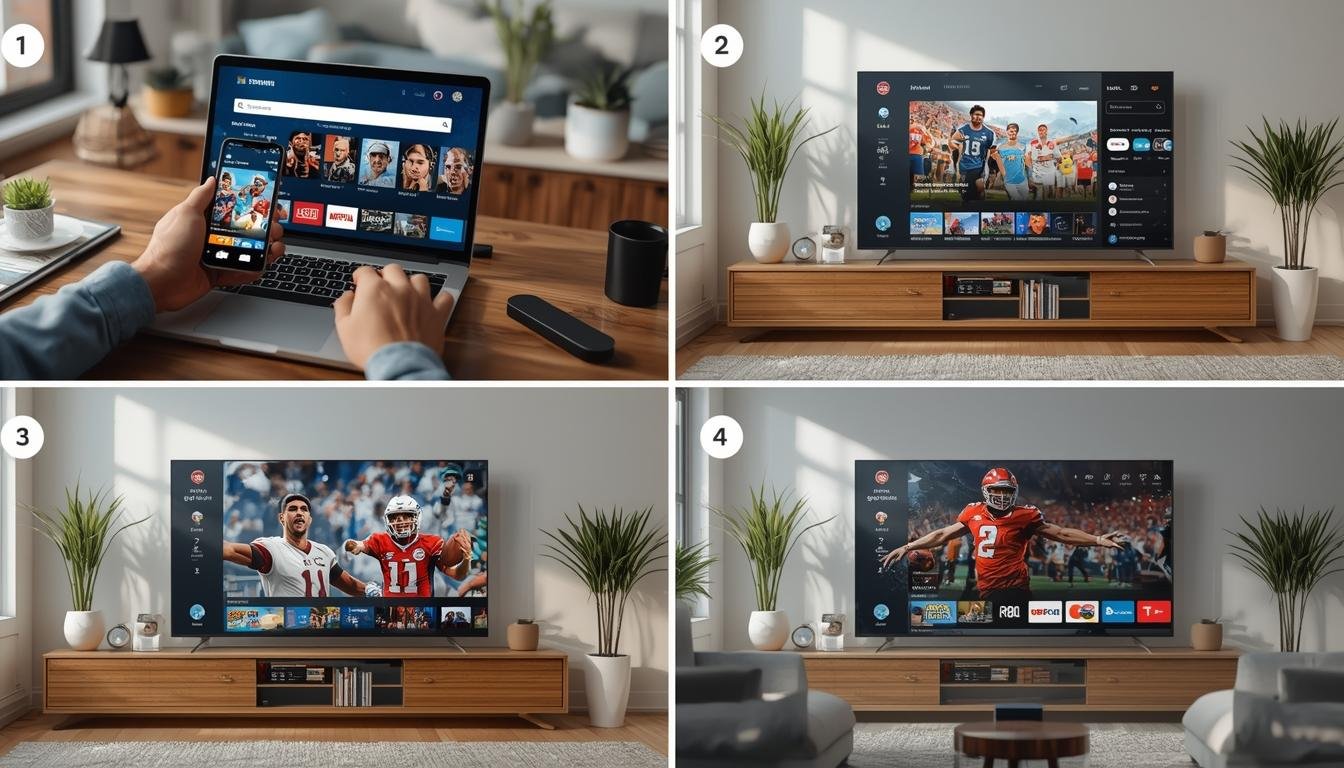
    Why does my stream buffer despite having fast internet?

    Buffering can occur for several reasons beyond internet speed, including server load, network congestion, outdated device hardware, or improper buffer settings. Try adjusting buffer settings in the application, using a wired connection instead of WiFi, or streaming during off-peak hours. Some service providers may also experience temporary server issues.

    Can I use my subscription on multiple devices simultaneously?

    This depends on your service provider’s terms. Most providers allow 1-3 concurrent connections per subscription. Check your subscription details or contact your provider to confirm. Using more connections than allowed may result in service interruption or account suspension.

    How can I improve picture quality on my older TV?

    For older TVs, consider using an external streaming device like a Firestick or Android box rather than built-in smart features. Adjust the output resolution in the app settings to match your TV’s native resolution. Enable hardware acceleration if available, and ensure your HDMI cables support the required bandwidth for your desired resolution.

    Is it legal to use these streaming applications?

    The applications themselves are legal software tools. However, the legality depends on the content you access and your location. Always ensure you have proper rights to the content you’re streaming. Many service providers offer legitimate access to licensed content, while others may operate in gray areas. Research local regulations regarding content access in your region.