How to Set Up IPTV on Multiple Devices: The Complete Guide
Are you looking to expand your entertainment options beyond traditional cable? Internet Protocol Television (IPTV) offers thousands of channels, on-demand content, and flexible viewing options at competitive prices. Setting up IPTV might seem complicated at first, but with the right guidance, you can be streaming your favorite shows in no time. When selecting from Top Rated IPTV Services, it’s important to understand compatibility across different devices and how to optimize your viewing experience. This comprehensive guide will walk you through everything you need to know about installing and configuring IPTV on various devices, helping you choose from the best IPTV providers for your specific needs.
Devices & Requirements
Before diving into the setup process, you’ll need to ensure you have the necessary hardware and software. Here’s what you’ll need:
Smart TVs
- Samsung, LG, or Sony Smart TVs (2016 models or newer)
- Internet connection (minimum 10 Mbps, 25+ Mbps recommended for HD content)
- IPTV subscription from a reliable provider
- Smart IPTV app, IPTV Smarters, or similar applications
Streaming Devices
- Amazon Firestick or Fire TV
- Nvidia Shield TV
- Roku devices
- Apple TV (4th generation or newer)
- Android TV boxes (any model with Android 7.0+)
Mobile Devices
- Android smartphones or tablets
- iPhones or iPads
- GSE Smart IPTV, IPTV Smarters Pro, or TiviMate apps
Computers
- Windows PC or Mac
- VLC Media Player, Perfect Player, or Kodi
Essential Requirements
- Stable internet connection (wired connection preferred for optimal performance)
- Active IPTV subscription
- M3U playlist URL, username, and password from your provider
- Device with sufficient processing power and storage
Setup Time & Preparation
Before beginning the installation process, it’s important to understand the time commitment and preparation required:
Expected Setup Duration:
- Firestick/Android TV Box: 10-15 minutes
- Smart TV: 15-20 minutes
- Mobile devices: 5-10 minutes
- Computers: 10-15 minutes
Preparation Steps:
1. Confirm your internet speed using a speed testing website or app
2. Gather your IPTV subscription details (M3U URL, username, password)
3. Clear adequate storage space on your device (at least 100MB)
4. Update your device’s operating system to the latest version
5. Have your device’s remote control or input method ready
6. Note down any specific configuration settings from your provider
Being well-prepared will significantly reduce the setup time and help avoid common frustrations. If using multiple devices, consider setting up one device first to test your subscription before proceeding with others.
Step-by-Step Instructions
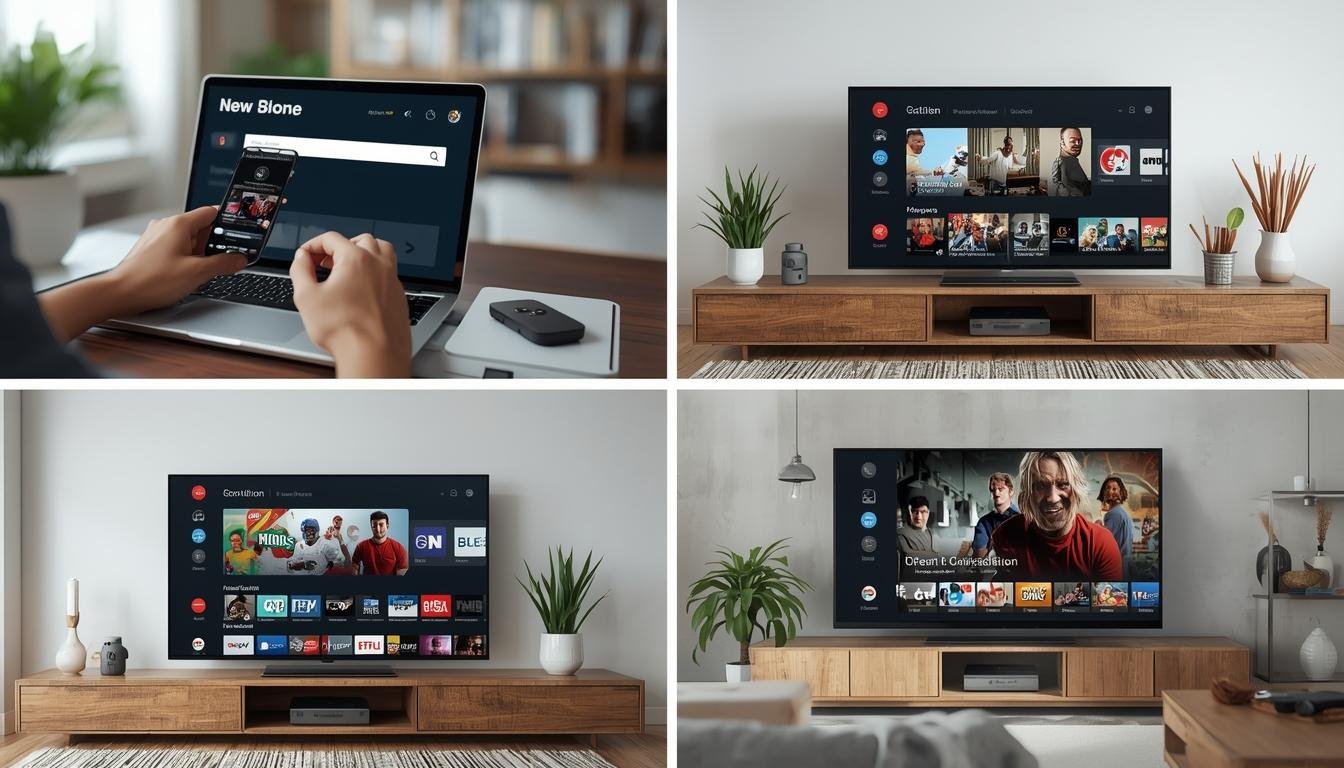
Let’s walk through the setup process for the most popular streaming devices. Select the appropriate instructions for your specific device:
Setting Up IPTV on Firestick/Fire TV
1. Install the IPTV App
* Go to your Firestick home screen
* Select “Search” and type “Downloader”
* Download and install the Downloader app
* Open Downloader and enable JavaScript in settings
* Enter the URL for downloading your preferred IPTV app (IPTV Smarters, TiviMate, etc.)
* Follow the prompts to install the APK file
2. Configure the IPTV App
* Launch your newly installed IPTV app
* Select “Add New Playlist” or similar option
* Choose the input method (URL, M3U, Xtream Codes)
* Enter the playlist URL, username, and password provided by your Top Rated IPTV Services subscription
* Name your playlist for easy identification
* Save your settings and wait for the channel list to load
3. Optimize Playback Settings
* Access the settings menu within your IPTV app
* Adjust buffer size based on your internet speed
* Set your preferred video quality (HD, SD, Auto)
* Configure EPG (Electronic Program Guide) settings
* Set up parental controls if needed
Setting Up IPTV on Smart TVs
1. Install the IPTV App
* Navigate to your TV’s app store (Samsung Apps, LG Content Store, etc.)
* Search for and install Smart IPTV, IPTV Smarters, or a similar app
* If your TV’s app store doesn’t have IPTV apps, use screen mirroring from another device
2. Add Your IPTV Subscription
* Launch the installed IPTV application
* Select “Settings” or “Add Playlist”
* Enter your subscription details from one of the best IPTV providers
* Save and allow the app to load channel data
3. Customize Your Experience
* Organize channels into favorites
* Set up recording options if available
* Adjust streaming quality based on your internet capabilities
Setting Up IPTV on Android/iOS Devices
1. Download the IPTV App
* Visit the Google Play Store or Apple App Store
* Search for and install IPTV Smarters Pro, GSE Smart IPTV, or TiviMate
* Launch the app once installation completes
2. Add Your Subscription
* Select “Add New Playlist” or equivalent option
* Choose between XTream Codes API or M3U URL input method
* Enter your provider’s details and name the playlist
* Save and allow channels to load
3. Mobile-Specific Optimizations
* Enable background playback if needed
* Set data usage limits to avoid excessive consumption
* Configure notification preferences
Benefits & Advantages
Switching to IPTV offers numerous advantages over traditional cable or satellite services:
Extensive Content Library
- Access to thousands of local and international channels
- On-demand movies and TV shows
- Sports packages from around the world
- Specialized content not available through conventional providers
Cost Effectiveness
- Significantly lower monthly subscription costs
- No equipment rental fees
- Multiple device access with a single subscription
- No installation or technician fees
Flexibility and Convenience
- Watch content on any device with internet access
- No long-term contracts or cancellation penalties
- Take your entertainment anywhere you go
- Easily switch between devices without losing your place
Enhanced Features
- Time-shifting and catch-up TV functionality
- Electronic Program Guide (EPG) for schedule planning
- Recording capabilities on compatible devices
- Multi-screen viewing options
Customization Options
- Create personalized channel lists
- Set favorites for quick access
- Parental controls and content filtering
- Interface customization on most applications
Tips, Alternative Methods, or Optimization Advice
To get the most out of your IPTV experience, consider these optimization techniques:
Network Optimization
- Use a wired Ethernet connection whenever possible
- Position wireless devices closer to your router
- Consider a mesh Wi-Fi system for larger homes
- Set QoS (Quality of Service) on your router to prioritize streaming traffic
Alternative Applications
- Kodi with IPTV addons provides a customizable experience
- Perfect Player offers excellent playback stability
- IPTV Extreme offers lightweight performance for older devices
- MyTVOnline is optimized for Formuler boxes
Performance Enhancements
- Restart your streaming device regularly
- Clear cache in your IPTV application weekly
- Close background applications when streaming
- Consider using a VPN for improved streaming privacy (but be aware it might reduce speed)
Advanced Configuration
- Create multiple playlists to organize different content types
- Use external players like VLC for problematic streams
- Configure buffer settings based on your network conditions
- Enable hardware acceleration if your device supports it
Common Mistakes to Avoid
Even experienced users make these common IPTV setup mistakes:
Subscription Selection Errors
- Choosing providers based solely on price without researching reliability
- Not testing with a short-term subscription before committing long-term
- Ignoring user reviews and uptime history
- Solution: Research thoroughly and request trials before committing
Technical Configuration Mistakes
- Using outdated applications or devices
- Setting buffer size too small or too large
- Not updating playlist URLs when provided by the service
- Solution: Keep apps updated and follow provider configuration recommendations
Network-Related Issues
- Streaming HD content on insufficient bandwidth
- Using crowded Wi-Fi channels
- Running too many simultaneous streams
- Solution: Perform speed tests, optimize your network, and match streaming quality to your bandwidth
Security Oversights
- Sharing subscription credentials publicly
- Downloading apps from untrusted sources
- Not using secure passwords for accounts
- Solution: Keep credentials private, use official app stores, and implement strong passwords
Maintenance & Ongoing Care
To ensure optimal performance over time, follow these maintenance practices:
Regular Updates
- Check for application updates weekly
- Update playlist URLs when notified by your provider
- Keep your streaming device’s operating system current
- Update EPG data regularly for accurate program information
Performance Maintenance
- Clear application cache monthly
- Restart devices weekly to free system resources
- Monitor device storage and clear unnecessary files
- Run network speed tests periodically to verify performance
Subscription Management
- Track subscription renewal dates
- Keep payment information current
- Save provider support contact information
- Maintain backup subscription details in a secure location
Troubleshooting Routine
- Learn basic network diagnostics
- Document successful configuration settings
- Establish a systematic approach to resolving playback issues
- Create a backup configuration on secondary devices
Conclusion
IPTV technology offers an impressive alternative to traditional television services with greater flexibility, content selection, and cost savings. By following this comprehensive setup guide, you’ll be able to enjoy content from Top Rated IPTV Services across all your devices with minimal frustration. Remember that proper configuration and regular maintenance are key to a smooth viewing experience. Whether you’re a sports enthusiast, movie buff, or international content viewer, the right setup will ensure you get the most value from your subscription. Take time to explore different applications and configurations to find what works best with your selected best IPTV providers and personal viewing habits. With the knowledge you’ve gained from this guide, you’re well-equipped to enjoy a world of entertainment at your fingertips.
FAQs
How much internet speed do I need for IPTV streaming?
For standard definition content, 5-10 Mbps is typically sufficient. For HD content, aim for at least 15-25 Mbps. 4K streaming requires 25-50 Mbps or more. Remember that these speeds should be consistent, and other household devices will share this bandwidth.
Why does my IPTV stream buffer frequently?
Buffering is commonly caused by insufficient internet speed, network congestion, or improper buffer settings in your IPTV app. Try using a wired connection, closing other bandwidth-heavy applications, and adjusting buffer settings. Sometimes, the issue may be with the IPTV provider’s servers.
Can I use the same IPTV subscription on multiple devices?
Most providers allow 1-5 simultaneous connections depending on your subscription plan. Check your provider’s terms of service for specific limitations. Using more connections than permitted may result in service interruption or account termination.
Are IPTV services legal to use?
The legality varies by location and content. Services that properly license their content are legal, while those redistributing content without proper licensing may not be. Research your provider and local regulations to ensure compliance.
How can I improve channel switching speed on my IPTV service?
To improve channel switching performance, try reducing EPG data loading, using a more powerful device, clearing app cache regularly, and ensuring your network has low latency. Some applications also offer “quick channel switching” options in their settings menu.
Leave a Reply