Roku does not run Android apps, so IPTV players are harder to find than on a Fire TV stick or an Android box. You still have three practical ways to get IPTV on a Roku TV, and each suits a different situation.

Roku TV and Roku streaming device
The two behave the same for this purpose. A Roku TV has the system built in, and a Roku stick or box adds it to any TV. What matters is the Roku channel store and the screen mirroring support.
Method 1: a player from the Roku Channel Store
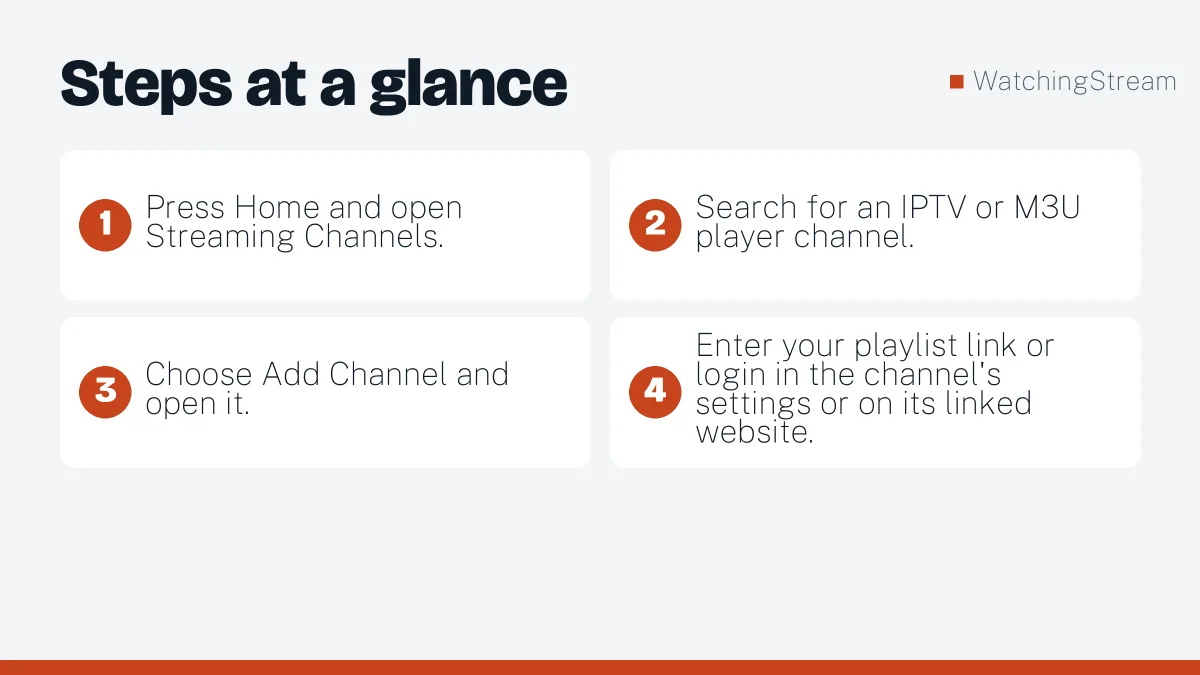
- Press Home and open Streaming Channels.
- Search for an IPTV or M3U player channel.
- Choose Add Channel and open it.
- Enter your playlist link or login in the channel’s settings or on its linked website.
The number of players in the store is small, and quality varies. Read reviews before you rely on one.
Method 2: screen mirroring
Mirror an IPTV app from your phone or computer to the Roku TV. 1. Turn on screen mirroring in the Roku settings. 2. Start mirroring from an Android device, or AirPlay from an Apple device. 3. Open your IPTV player on the phone and play a channel.
This works without installing anything on the Roku, but your phone must stay on and the picture can lag.
Method 3: add a stick for full IPTV access
Plug a Fire TV stick or an Android TV box into a spare HDMI port. You get a proper app store and a full player. Our Firestick app comparison shows what to install.
Which method should you use?
| Need | Best method |
|---|---|
| Quick test | Screen mirroring |
| Daily viewing | Add a stick |
| Simplest possible | A Roku channel, if a good one exists |
Before you start
- Update Roku to the latest software.
- Run a speed test and plan on 8 to 10 Mbps for HD.
- Have your M3U link or Xtream login ready. The setup guide explains each.
Choosing a service for Roku
Choose a provider that offers M3U links, since they work with almost any player. RobotIPTV lists plans with a 7-day money-back guarantee, and Mom IPTV lists a 24-hour trial. For US-focused options see the US services compared.
Common problems and fixes
- Mirrored video lags: move closer to the router or use 5 GHz Wi-Fi.
- Channel will not load a list: shorten the list or try a different player.
- Buffering: use a cable adapter if your Roku supports one.
For RobotIPTV’s version of this guide, read IPTV on Roku TV.
Frequently asked questions
Can you get IPTV on Roku?
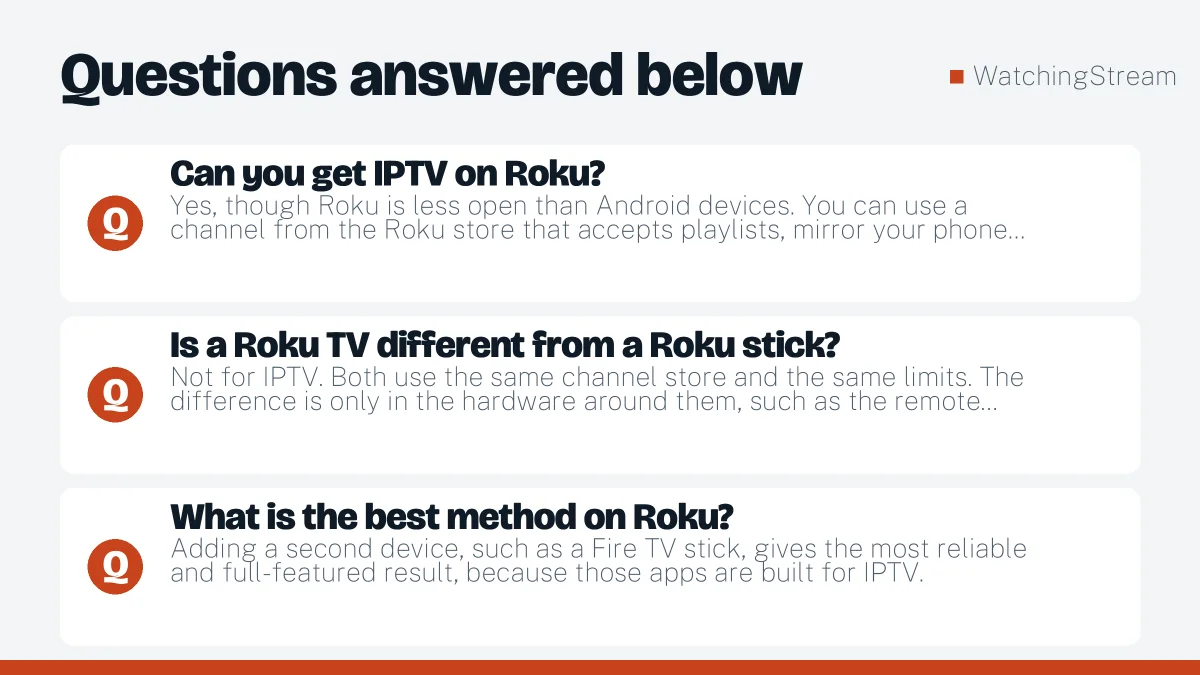
Yes, though Roku is less open than Android devices. You can use a channel from the Roku store that accepts playlists, mirror your phone screen, or plug in a Fire TV or Android stick into the TV. Each route trades convenience for features, so pick based on how often you will watch.
Is a Roku TV different from a Roku stick?
Not for IPTV. Both use the same channel store and the same limits. The difference is only in the hardware around them, such as the remote and the TV panel. If one does not work for your app, the other will not either.
What is the best method on Roku?
Adding a second device, such as a Fire TV stick, gives the most reliable and full-featured result, because those apps are built for IPTV. Screen mirroring works in a pinch but can lower picture quality and ties up your phone. See the Firestick app guide for the stick route.
Is mirroring good enough?
For a quick test or a single match it is fine. For daily use it is clumsy, because your phone must stay on and close to the TV, and quality depends on your Wi-Fi. If you plan to watch regularly, use a dedicated app on a stick or a smart TV instead.