Setting IPTV up sounds technical, but it comes down to three things: a device, a player app and the login details from your provider. This guide walks through each one in the order you will do them, and lists the settings and fixes that save the most time.
What you need before you start
- A device that can run a player: smart TV, Fire TV stick, Android box, phone, tablet or computer.
- An internet connection with roughly 8 to 10 Mbps free per HD stream.
- Login details from your service: an M3U link, an Xtream Codes login or a portal address.
- A wired connection for the main TV if you can, since Wi-Fi is the most common cause of buffering.
Service or player: know the difference
The service is where the channels come from. The player is the app that shows them. Installing a player does not give you any channels on its own, and a login does nothing until a player uses it. If you mix these up, setup feels confusing. The types of IPTV guide explains it further.
M3U and Xtream Codes in simple terms
An M3U link is one web address that holds the whole channel list. An Xtream Codes login uses a server address, a username and a password, and lets the app load channels, categories, the guide and the on-demand library separately. Xtream logins usually give the nicest result in apps like IPTV Smarters. If you only have an M3U link, this playlist guide shows how to add it.
How setup changes by device
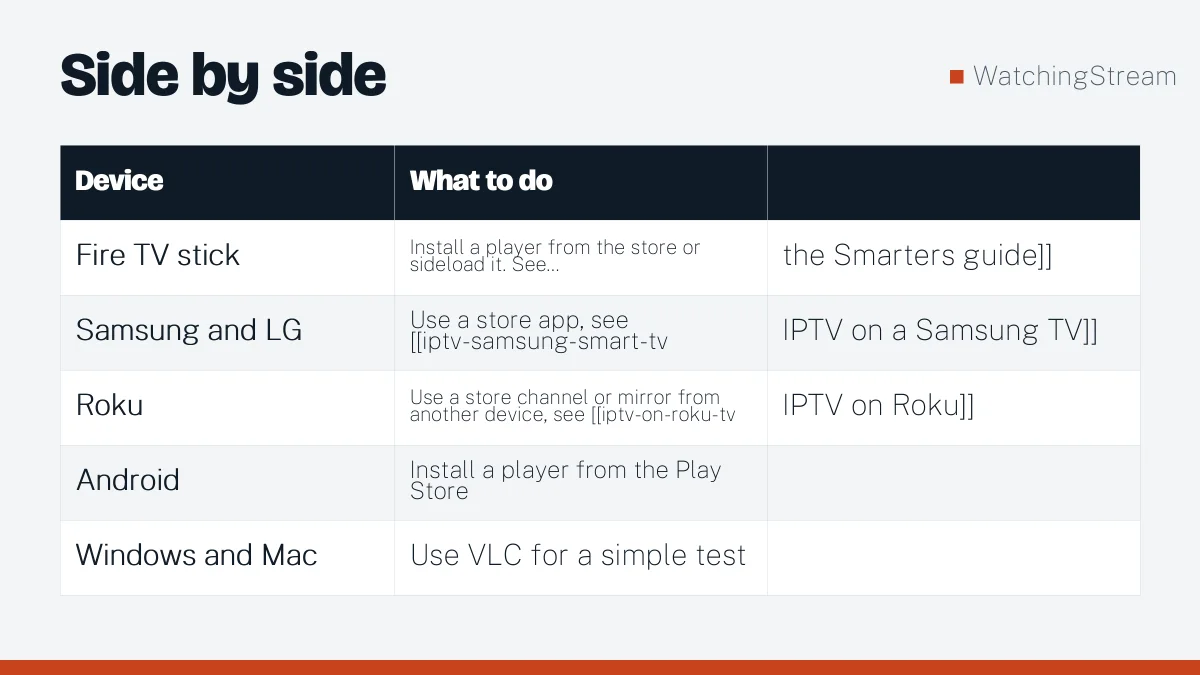
| Device | What to do | |
|---|---|---|
| Fire TV stick | Install a player from the store or sideload it. See [[iptv-smarters-pro-for-firestick | the Smarters guide]] |
| Samsung and LG | Use a store app, see [[iptv-samsung-smart-tv | IPTV on a Samsung TV]] |
| Roku | Use a store channel or mirror from another device, see [[iptv-on-roku-tv | IPTV on Roku]] |
| Android | Install a player from the Play Store | |
| Windows and Mac | Use VLC for a simple test |
Settings worth changing after setup
- Buffer size: raise it if streams stutter on Wi-Fi.
- Decoder: switch between hardware and software if the picture is black or choppy.
- EPG refresh: set it to update every day so the guide stays current.
- Parental PIN: lock categories you do not want children to open.
- Aspect ratio: set to automatic or 16:9 so channels fill the screen.
Common problems and quick fixes
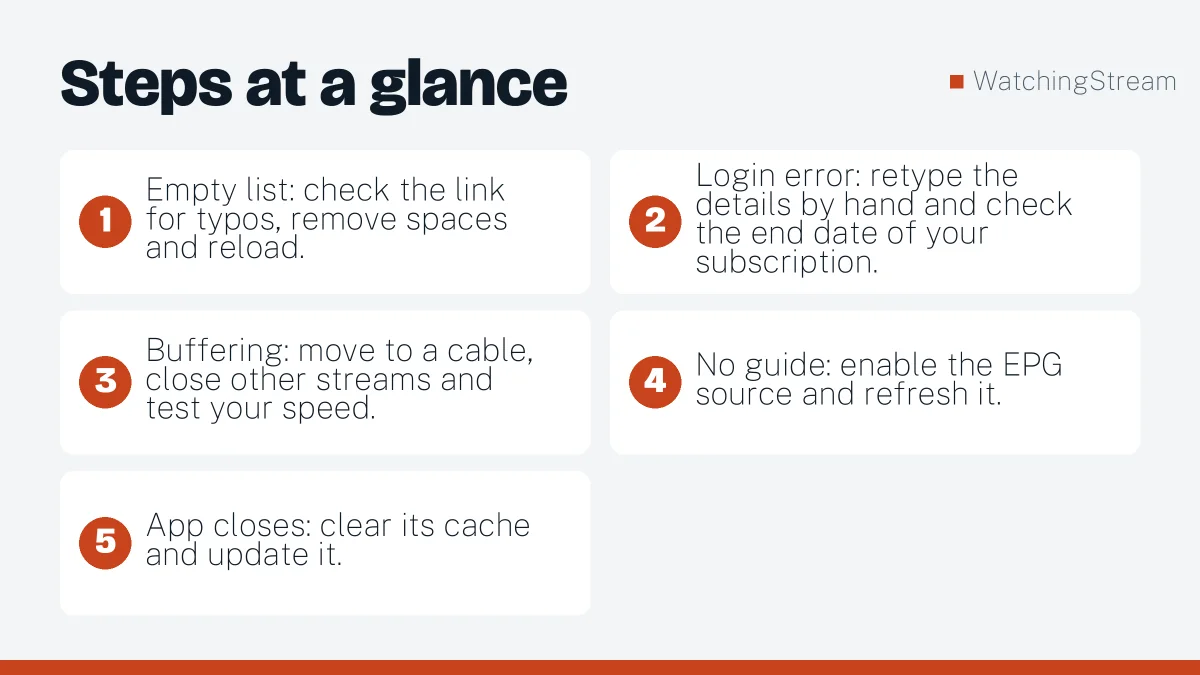
- Empty list: check the link for typos, remove spaces and reload.
- Login error: retype the details by hand and check the end date of your subscription.
- Buffering: move to a cable, close other streams and test your speed.
- No guide: enable the EPG source and refresh it.
- App closes: clear its cache and update it.
See the authorization error guide if a login is refused.
Is setting IPTV up legal?
Players and the technology are legal. The question is whether the content you load is licensed. Use a provider that is open about who runs it, keep your payment records, and treat unusually cheap lifetime offers with caution.
Where to read more
Both RobotIPTV’s setup guide and Velora4K’s setup walkthrough cover the same steps with their own screenshots and support options.
Frequently asked questions
Do I need a special box for IPTV?
No. A smart TV, a Fire TV stick, an Android box, a phone, a tablet or a computer with a player app is enough. A stick is a good low-cost choice if your TV is older, because it gives you a modern app store and a remote that works well with players. Buy a box only if you want one device dedicated to the TV, and remember that the quality of your internet connection matters more than the hardware.
Which login is better, M3U or Xtream Codes?
Xtream Codes usually gives the neater result because the app asks the server for channels, categories, the guide and the library separately. M3U works almost everywhere and is simple to copy between devices, which makes it ideal for testing in VLC. If your provider offers both, try Xtream first in a full-featured app and keep the M3U link as a backup. M3U vs MAC address compares them in detail.
How long does setup take?
Most people finish in 10 to 15 minutes. The slow part is usually typing the login with a TV remote, so use a phone or computer where the player allows it. If you have the details ready and your internet is working, installing the app and loading the list takes only a few minutes. Spending a little time on buffer size and guide refresh afterwards makes everyday use smoother.
What should I do first if the list is empty?
Check the link or server address for typos and hidden spaces, then confirm the subscription end date. Test the same link in VLC on a computer to see whether the source works. If it plays there, the problem is in your player, and clearing its cache or reinstalling usually fixes it. See the authorization guide for login errors.