
IPTV Smarters Pro is one of the most used players on Fire TV. It is free to install, accepts Xtream logins and M3U links and shows live TV, movies and series in clear tabs. Here is how to put it on a Firestick in four steps.

Will it run on your Firestick?
Most Fire TV Stick models and the Fire TV Cube run it. Older first-generation sticks can feel slow, so an update and some free storage help. If the app opens but stutters, try a newer stick.
Before you install
- Update your Firestick in Settings, My Fire TV, About.
- Free at least a few hundred megabytes of storage.
- Have your login ready: an Xtream login or an M3U link.
- Test your speed. Plan on 8 to 10 Mbps for HD.
Install in 4 steps
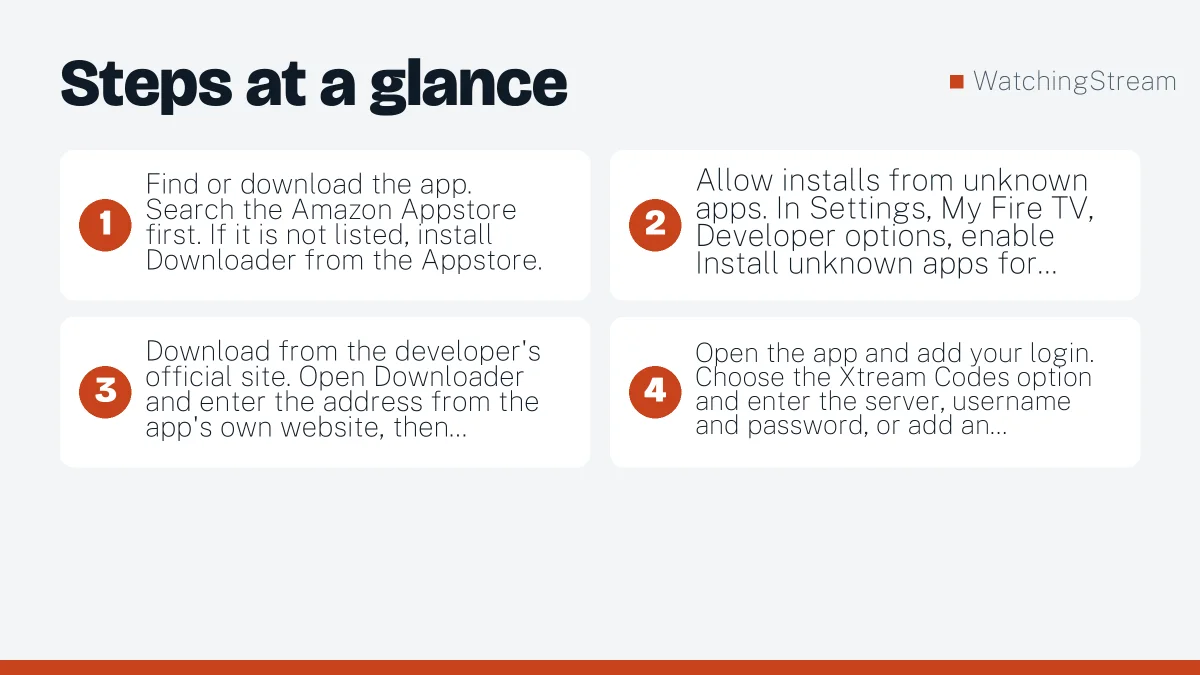
- Find or download the app. Search the Amazon Appstore first. If it is not listed, install Downloader from the Appstore.
- Allow installs from unknown apps. In Settings, My Fire TV, Developer options, enable Install unknown apps for Downloader only.
- Download from the developer’s official site. Open Downloader and enter the address from the app’s own website, then install.
- Open the app and add your login. Choose the Xtream Codes option and enter the server, username and password, or add an M3U link.
Switch the unknown apps setting off after you finish. The Amazon developer pages explain how Fire TV installs work, in the Fire TV documentation.
When it does not work
- Login refused: see the authorization fixes.
- App crashes or freezes: see the not-working guide.
- Buffering: use a cable adapter and test another time of day.
Is it legal and safe?
The app is a legitimate player. Safety depends on where you download it and what you load into it. Use the developer’s own site and a provider you can identify.
Pros and cons
- Pros: free, Xtream and M3U support, clear tabs, parental controls.
- Cons: a sideload may be needed, and Xtream details are slow to type on a remote.
Where to read more
Both Velora4K’s walkthrough and RobotIPTV’s Firestick guide cover the same steps with their own screenshots. Compare players in the Firestick app comparison.
Frequently asked questions
Does IPTV Smarters Pro work on Firestick?
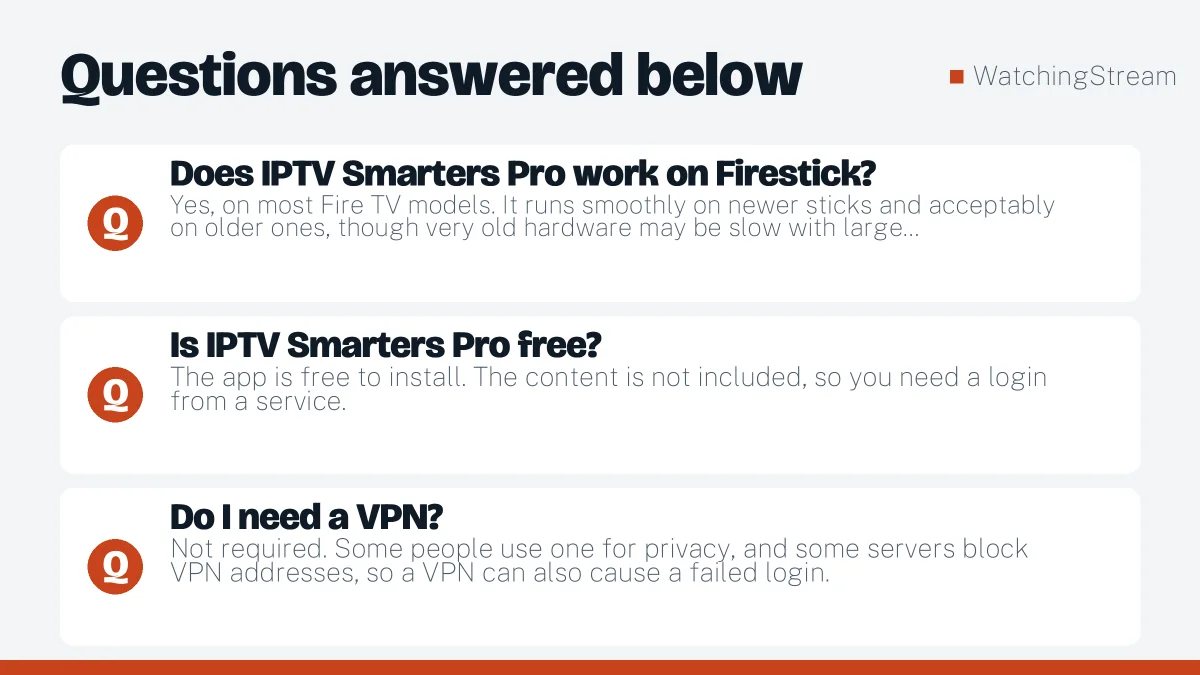
Yes, on most Fire TV models. It runs smoothly on newer sticks and acceptably on older ones, though very old hardware may be slow with large lists. Update the Fire OS first and keep some storage free.
Is IPTV Smarters Pro free?
The app is free to install. The content is not included, so you need a login from a service. This is the main thing to understand before you start: the app is the player, the login is the subscription. See the types of IPTV.
Do I need a VPN?
Not required. Some people use one for privacy, and some servers block VPN addresses, so a VPN can also cause a failed login. If you hit a failed authorization error, test with the VPN off.
How do I add my login?
Open the app, choose to add a user, and enter the name, username, password and server address your service gave you. Check each character, then save. The app loads channels, the guide and the library once the login is accepted.