When Smarters stops working on a Firestick, the cause is usually small: storage, an old app version, a network problem or a login that changed. Work through these steps in order and most problems are solved in minutes.
Is it the stick, the app or the service?
- If other apps on the stick also freeze, the stick is the problem.
- If only Smarters misbehaves, the app is the problem.
- If Smarters opens but shows login errors or empty lists, the service or the network is the problem.
8 fixes
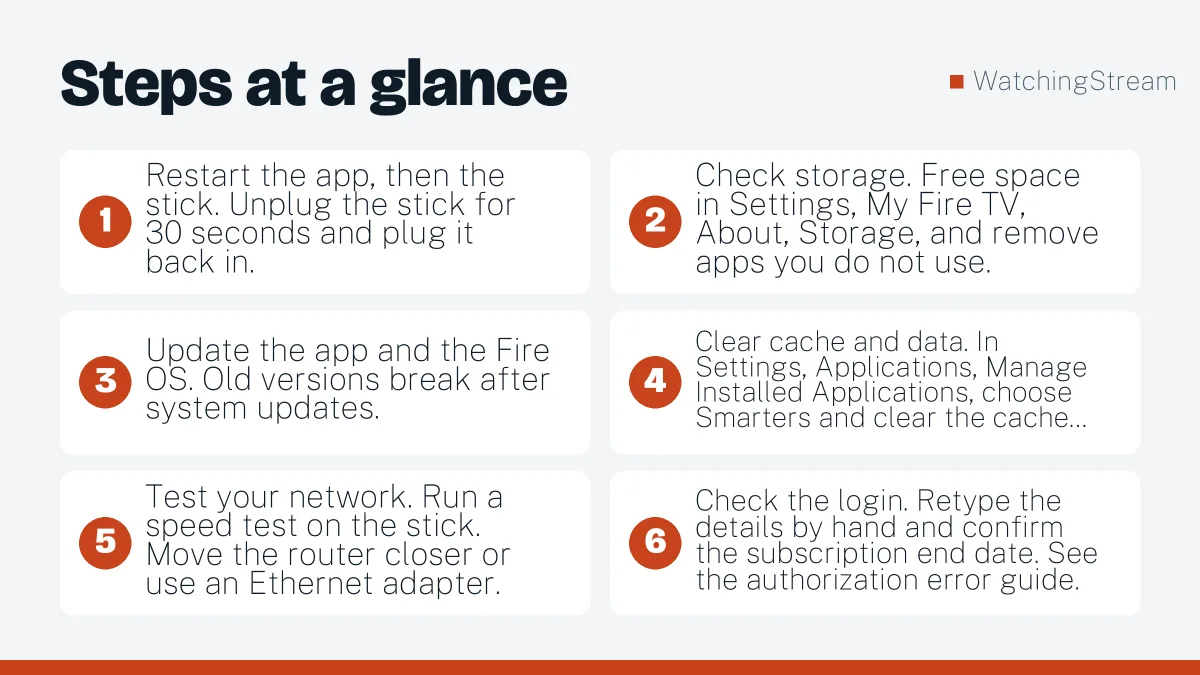
- Restart the app, then the stick. Unplug the stick for 30 seconds and plug it back in.
- Check storage. Free space in Settings, My Fire TV, About, Storage, and remove apps you do not use.
- Update the app and the Fire OS. Old versions break after system updates.
- Clear cache and data. In Settings, Applications, Manage Installed Applications, choose Smarters and clear the cache first. Clear data only if needed, because you will need to log in again.
- Test your network. Run a speed test on the stick. Move the router closer or use an Ethernet adapter. The router guide helps with buffering.
- Check the login. Retype the details by hand and confirm the subscription end date. See the authorization error guide.
- Try a different DNS or a VPN setting. Some internet providers block IPTV servers. Test with the VPN on and off.
- Reinstall. Uninstall, restart, and install the latest version from the developer’s site. The install guide shows the steps.
Which fix for which problem?
| Problem | Try fix |
|---|---|
| App will not open | 1, 3, 8 |
| Freezes or crashes | 2, 4, 8 |
| Buffering | 5, 7 |
| Login error | 6 |
| Empty channel list | 6, 7 |
How to reset Smarters
Clear the app data, open the app and add your login again. This resets saved lists and settings.
When to contact support
If every device fails at once, your provider may have a server problem. Customers of RobotIPTV or Velora4K can ask their support teams for the current server address. Compare alternative apps in our app guide, or see RobotIPTV’s full list of fixes.
Frequently asked questions
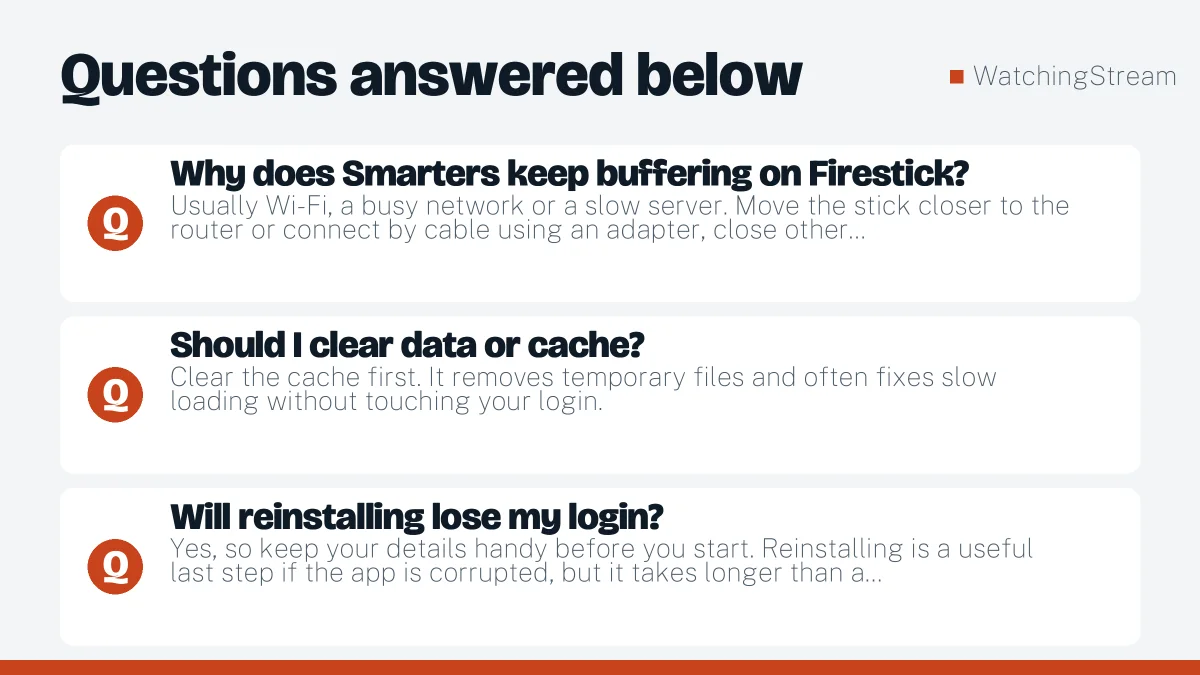
Why does Smarters keep buffering on Firestick?
Usually Wi-Fi, a busy network or a slow server. Move the stick closer to the router or connect by cable using an adapter, close other streams and test again at a quieter time. Buffering that happens on every channel points to your network, buffering on one channel points to that stream.
Should I clear data or cache?
Clear the cache first. It removes temporary files and often fixes slow loading without touching your login. Clear data only if the problem continues, because it resets the app and removes your saved users.
Will reinstalling lose my login?
Yes, so keep your details handy before you start. Reinstalling is a useful last step if the app is corrupted, but it takes longer than a cache clear and rarely helps if the cause is the network. The authorization guide covers login errors.
Is the Firestick itself the problem?
Sometimes. An overheated or low-storage stick runs slowly. Unplug it for a minute, free some space and update the system. If the app still lags, a newer stick makes a noticeable difference.