Smart IPTV, often shortened to SIPTV, is one of the oldest and steadiest IPTV players for smart TVs. It does not include any channels. You load your own playlist, using the app’s MAC address code, and it plays what that playlist contains.
What you need
- A device that has the Smart IPTV app available.
- The MAC address shown inside the app.
- A playlist link from your provider.
- A computer or phone to upload the playlist.
The six steps
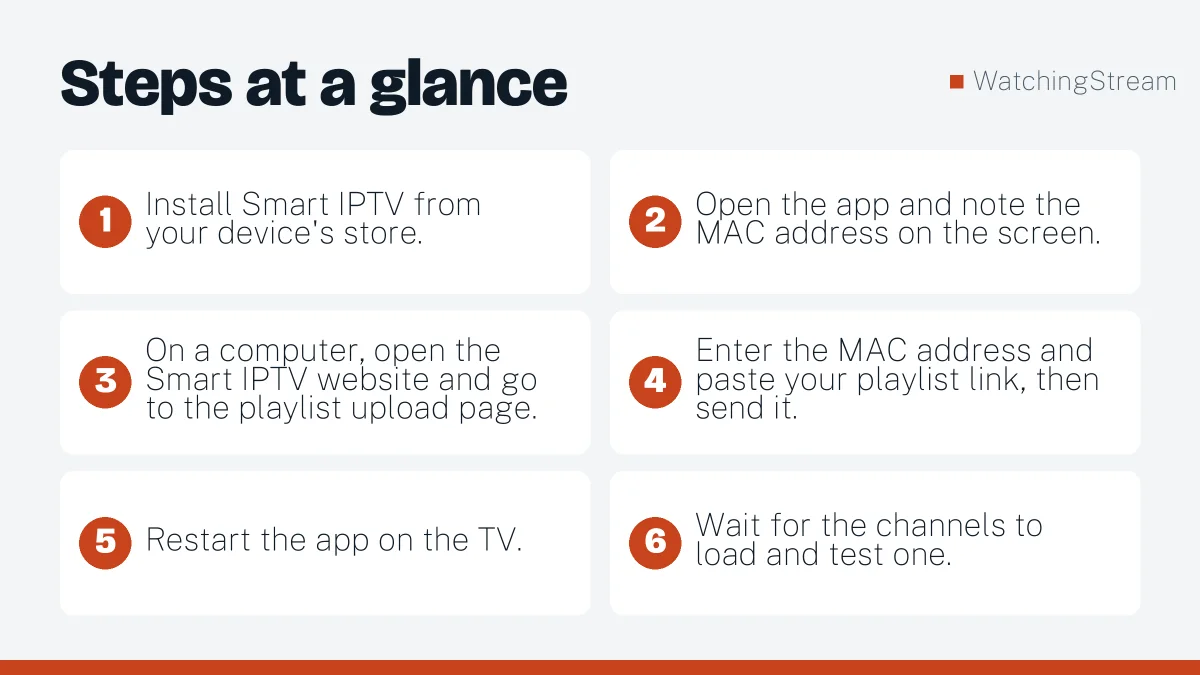
- Install Smart IPTV from your device’s store.
- Open the app and note the MAC address on the screen.
- On a computer, open the Smart IPTV website and go to the playlist upload page.
- Enter the MAC address and paste your playlist link, then send it.
- Restart the app on the TV.
- Wait for the channels to load and test one.
Samsung TVs
Follow the steps above after installing from Samsung Apps. A full walkthrough is in IPTV on a Samsung Smart TV.
LG TVs
Install the app from the LG Content Store. LG shows the MAC address in the app or in network settings. Upload your playlist the same way.
Fire TV and Android
Smart IPTV runs as an Android app. On Fire TV you may need to sideload it with the Downloader app. See the Firestick app comparison for alternatives that install more easily.
MAG boxes
MAG boxes use a portal address. M3U vs MAC address explains the difference.
Smart IPTV vs IPTV Smarters Pro
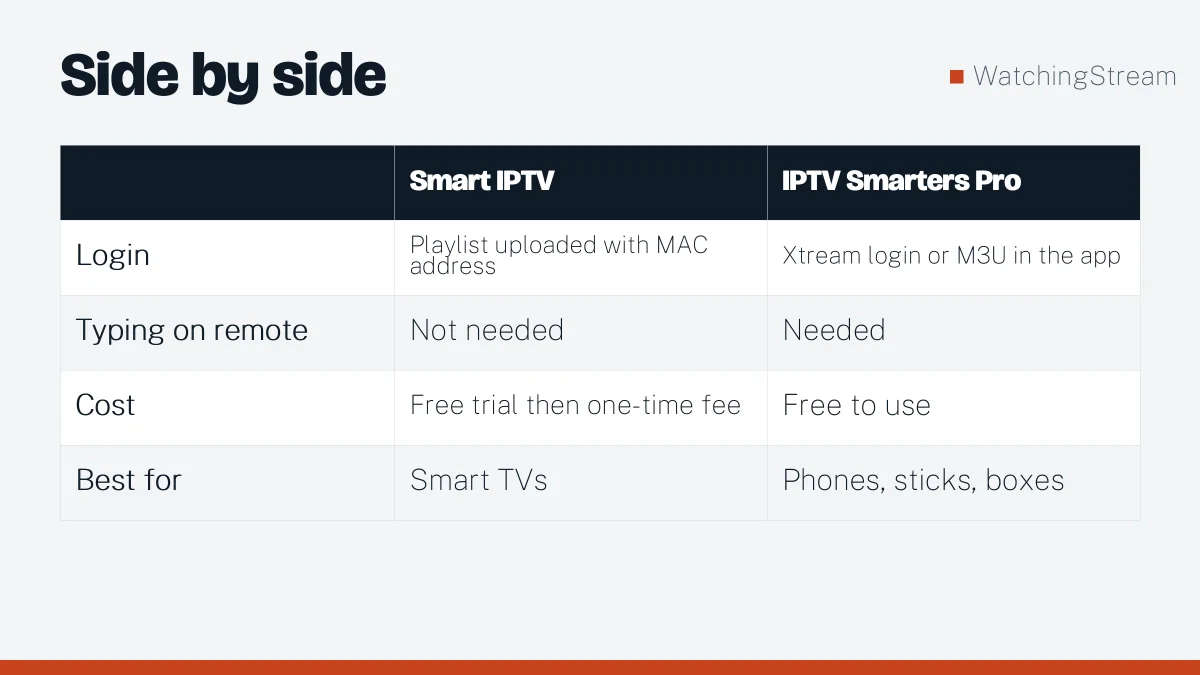
| Smart IPTV | IPTV Smarters Pro | |
|---|---|---|
| Login | Playlist uploaded with MAC address | Xtream login or M3U in the app |
| Typing on remote | Not needed | Needed |
| Cost | Free trial then one-time fee | Free to use |
| Best for | Smart TVs | Phones, sticks, boxes |
Check the Smart IPTV site for current activation terms.
Common errors
- No playlist loaded: check the MAC address and resend the playlist.
- Playlist is too big: use a smaller list or ask for category filters.
- Channels do not play: confirm the subscription is active and test the link in VLC.
- No guide: add the EPG link supplied by your provider.
- Buffering: use a cable or move closer to the router.
Tips
Keep a copy of the playlist link, register only one MAC address per TV, and reload the list after changes. For a service that supports this setup, Mom IPTV lists a setup guide and its own Smart IPTV walkthrough.
Frequently asked questions
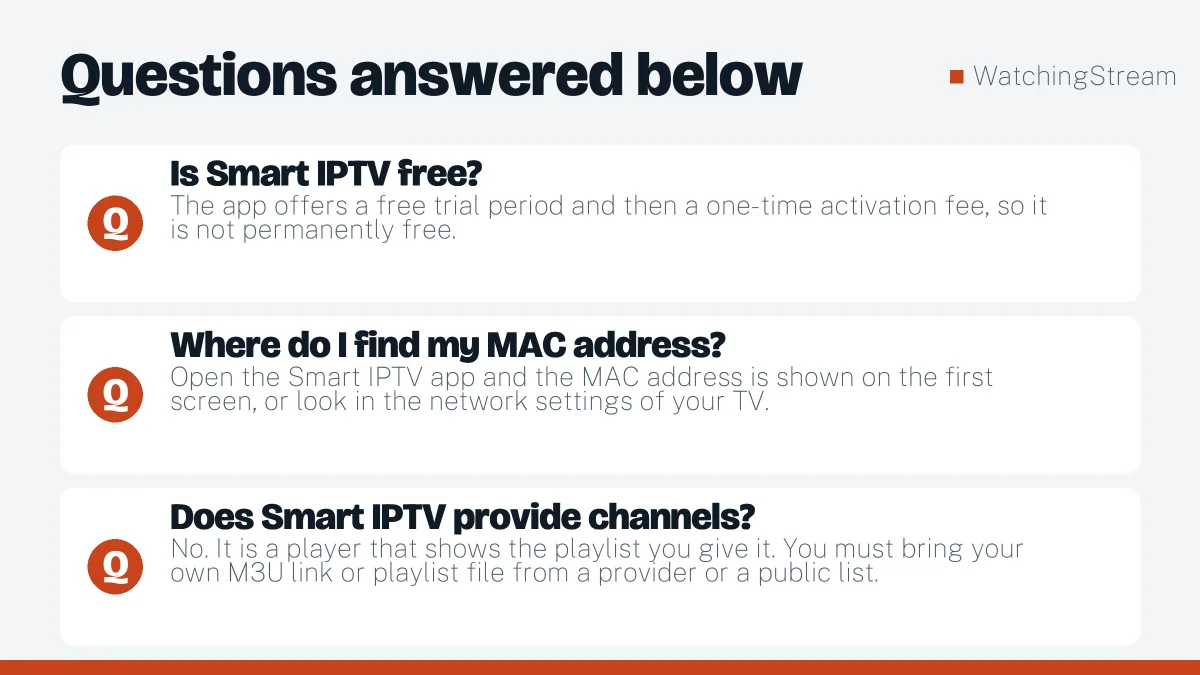
Is Smart IPTV free?
The app offers a free trial period and then a one-time activation fee, so it is not permanently free. The fee unlocks the app on your device, it does not buy any channels. Check the official Smart IPTV site for the current terms before you pay, and test the free period fully so you know the app suits your TV.
Where do I find my MAC address?
Open the Smart IPTV app and the MAC address is shown on the first screen, or look in the network settings of your TV. Copy it carefully, because one wrong character means the playlist will never load. Write it down or take a photo so you can check it against what you enter on the activation page.
Does Smart IPTV provide channels?
No. It is a player that shows the playlist you give it. You must bring your own M3U link or playlist file from a provider or a public list. This surprises many beginners, who install the app and then see an empty screen. Once you load a list, the channels appear. See how to get a playlist.
What if my list does not load?
Check the MAC address you entered, the link and the subscription end date. Then confirm the list plays in VLC on a computer. If VLC works, restart the app and re-send the list. If it still fails, the playlist file may be too large for the TV memory, so try a smaller list.